

Process active orders with failed billing events
An Active instalment, subscription or metered order can still have earlier payments that failed.
BillPro marks an order Failed when its latest payment is soft-declined, and keeps collecting. When a later payment is approved, the order becomes Active again. The earlier failed payments stay outstanding.
Automatic collectionWhen you add or update a card on an order, BillPro collects everything outstanding straight away. Reschedule or change failed billing events first.
Find active orders with failed billing events
You'll usually find them in Payments › Billing Exceptions, where the order status shows Active. See Monitor billing exceptions.
Open the order and click the Billing Events tab. The failed billing event has a red cross in Status, and its Retry Count. Expand it to see each declined attempt, and click a Transaction Unique ID to see why it failed.
In this example, auto-retry used all its retries without collecting the payment, and the next payment was approved.
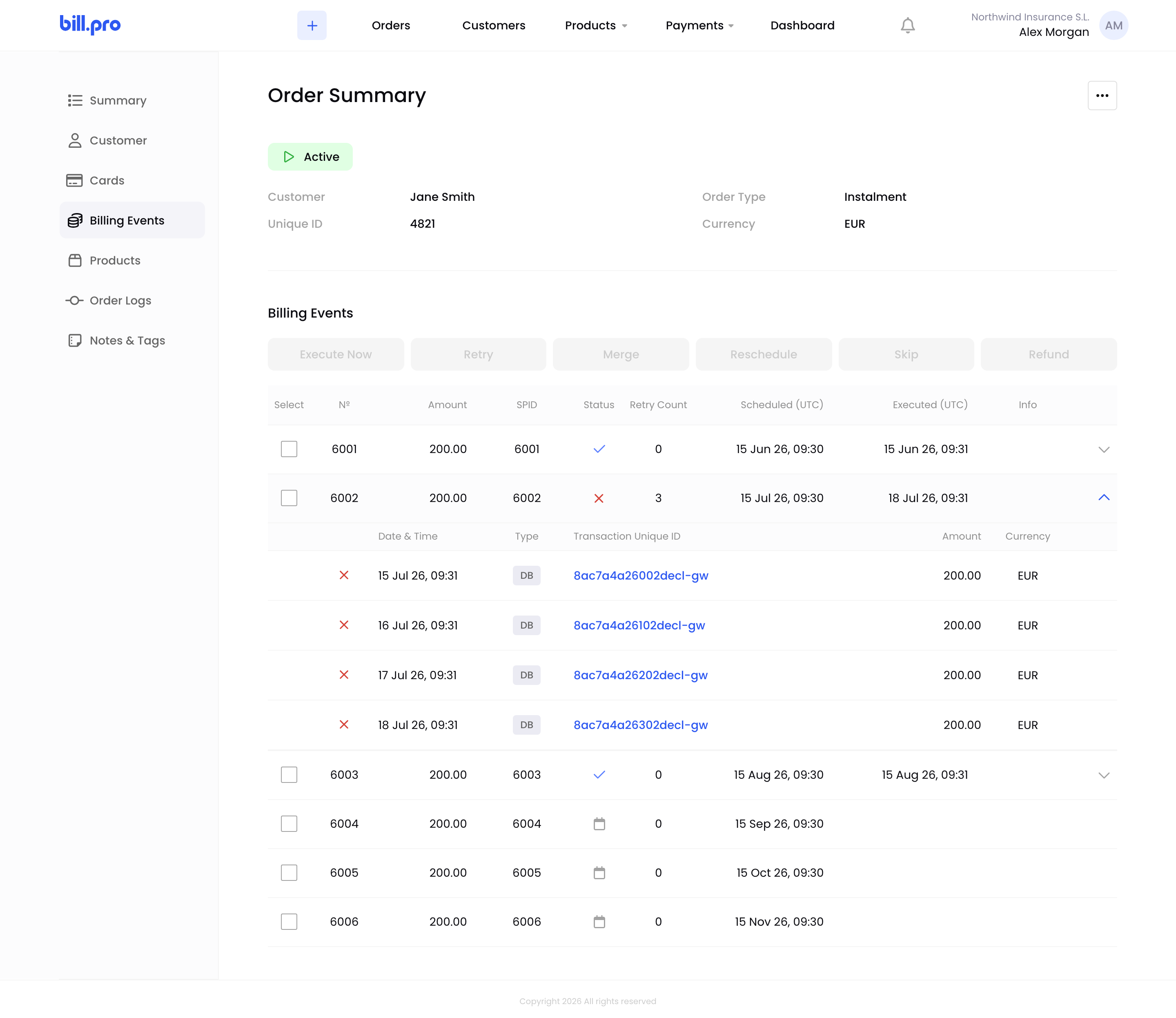
A failed billing event on an active order
Manage the failed billing events
- Add up the failed and overdue billing events. If you update the card, BillPro collects this amount straight away.
- Choose what to do. See Manage billing events.
- Retry a soft-declined payment, within 30 days of the decline and up to 15 times.
- Reschedule it for BillPro to collect later, and change the amount if needed.
- Merge several billing events into one, for example the failed one and the next scheduled one.
- Skip it to not collect it. To stop all remaining payments, mark the order as complete.
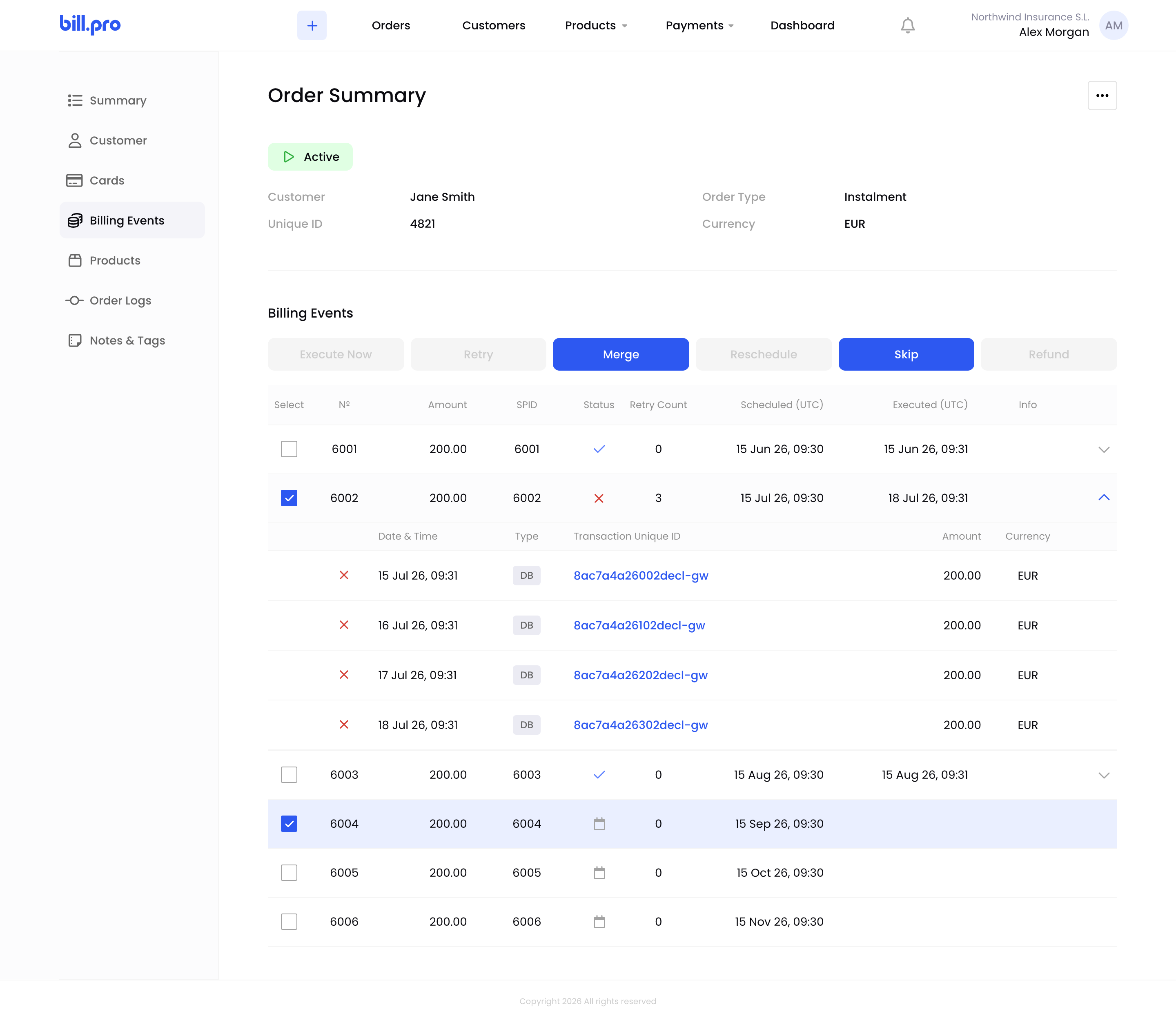
Select billing events to merge
Updated 3 days ago
Recommended reading
Read more about how to display and manage failed billing events and recover failed payments