
Process rejected orders
If the initial payment fails, then the order is rejected
A Draft or Pending order becomes Rejected when you submit an initial payment with the virtual terminal and it is declined. This status applies to phone payments only, with or without 3DS verification.
An initial payment can be:
- The full amount of a single payment order
- The authorisation of an amount on a card for a deposit or reservation (for a single payment order with the pre-authorise option)
- An initial payment or deposit amount, or card registration for a recurring payment order. This can be an instalment, subscription, or metered billing order.
BillPro does not automatically retry initial payments.
In the Orders list, a rejected order is marked with the rejected symbol, which is a red exclamation mark in a hexagon symbol. To display these orders, in Filters, for Status, select Rejected and apply the filter.
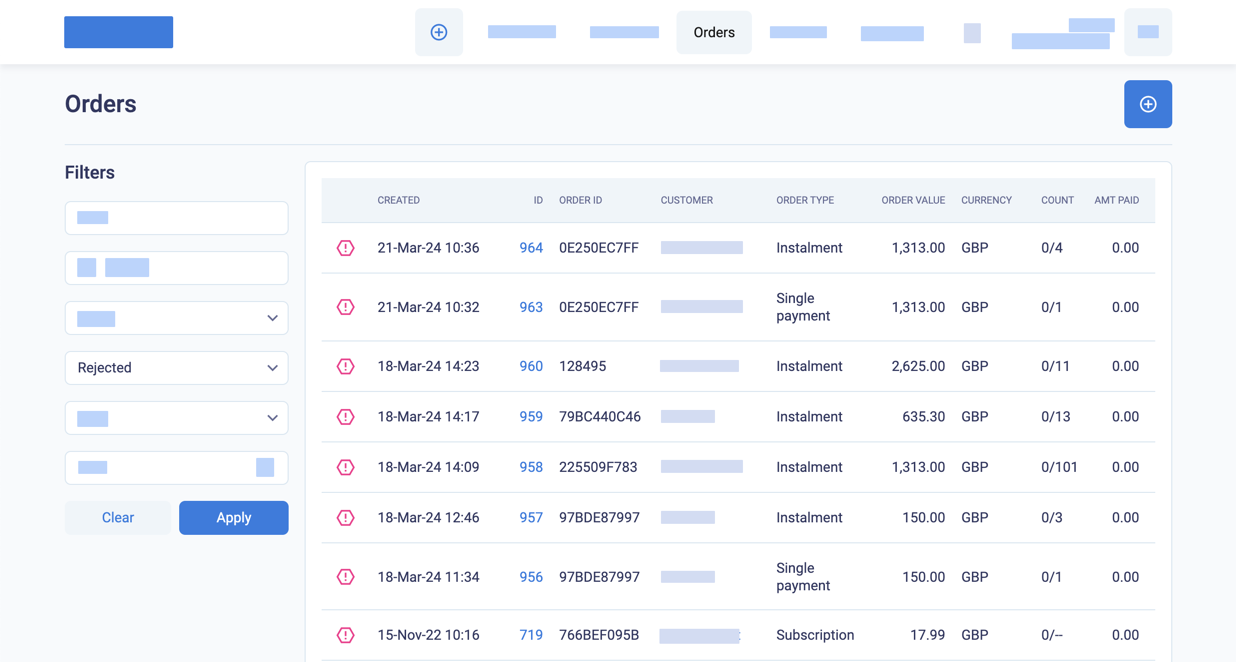
Filter the orders list to display rejected orders
Orders reportThe Orders report also gives details of rejected orders. For a full description of this report, see Orders report
Workflow for rejected orders
The following diagram shows how orders become Rejected when a payment from the virtual terminal is declined. And the actions you can take from this order status to move to another order status.
If you send a payment link for a Rejected order, BillPro processes the order to the e-commerce channel with 3DS verification.
When the customer successfully makes a payment or registers a card, then the order will move to an Active status. It can then move to the other Live statuses, or to a Complete status (if the full amount of the order has been paid or a pre-authorisation has been reversed).
Or, finally, you can cancel a rejected order.
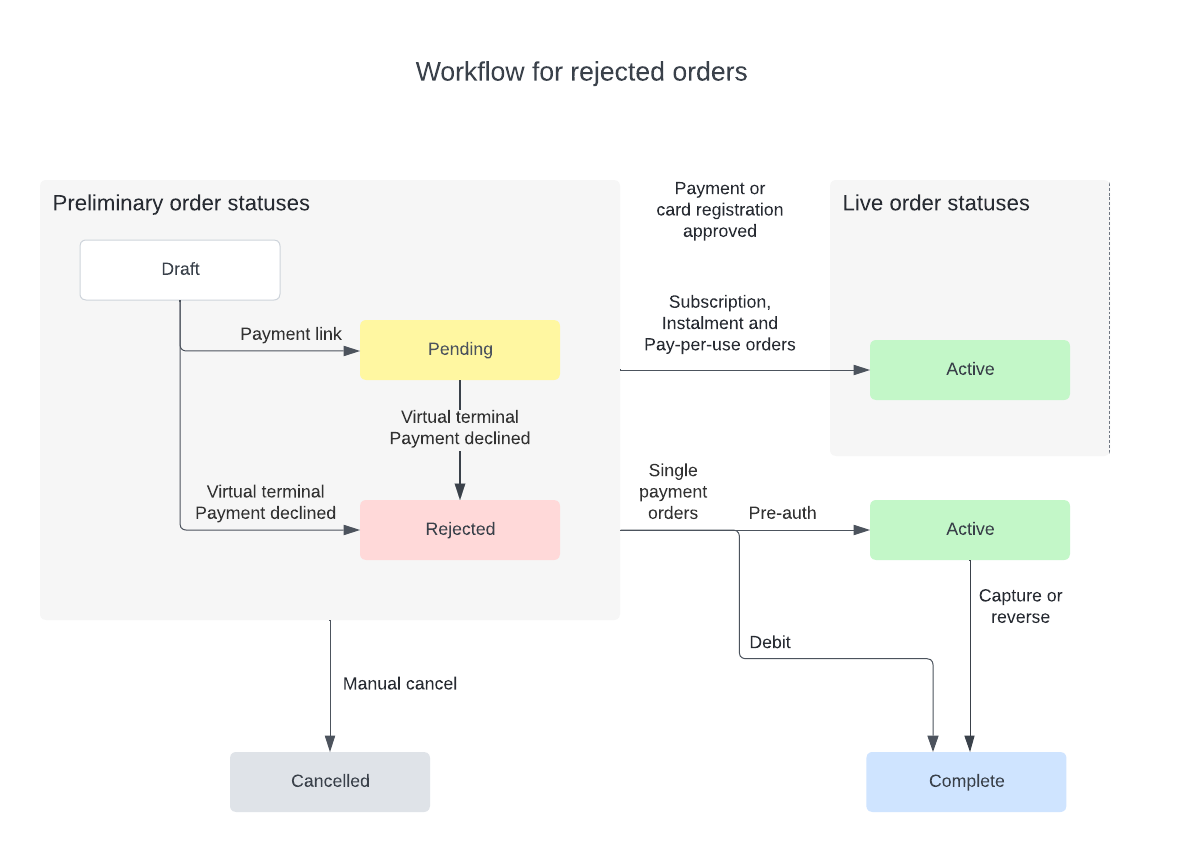
Process rejected orders
Manage rejected orders
To manage rejected orders, do these steps.
-
To display the events related to the failed transaction, from the Order Summary, open the Order Log.
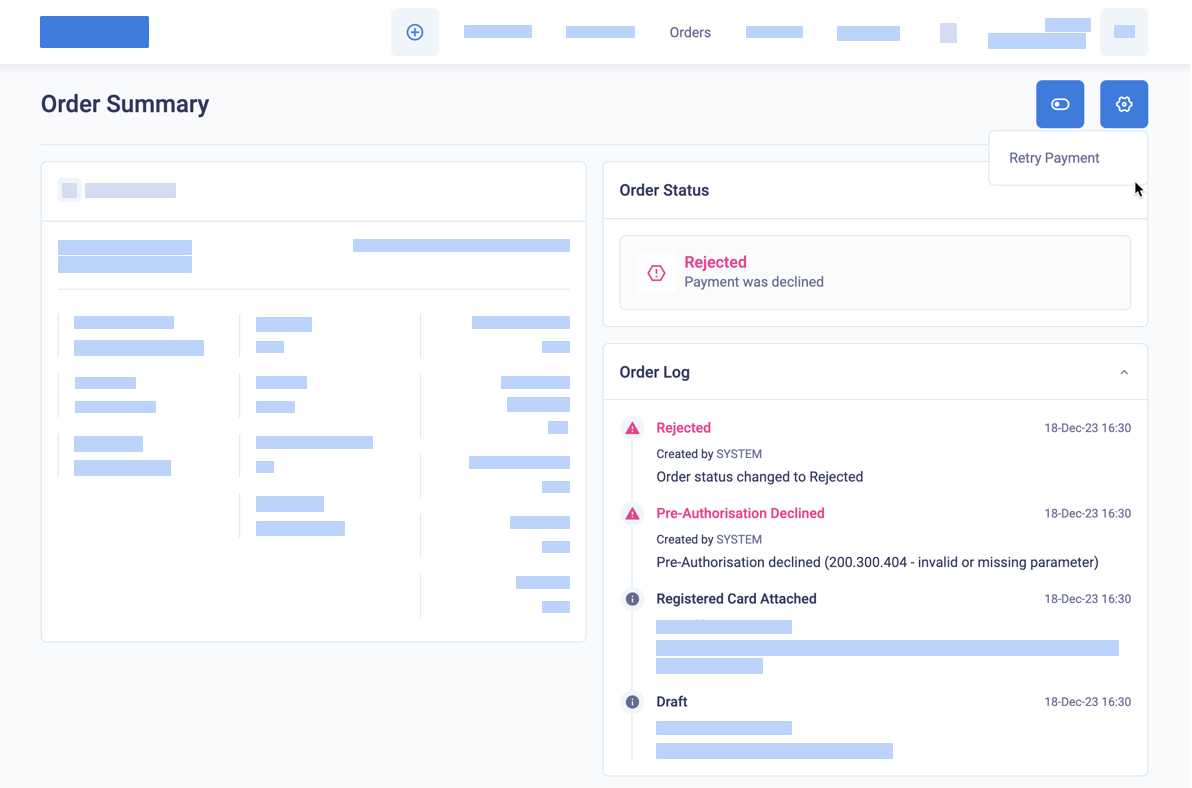
Display the order log for a rejected order
-
To view the full transaction details, go to Related Transactions at the bottom of the page and click on the TRANSACTION UNIQUE ID.

The list of related transactions for a rejected order
- The Transaction Details pop-up includes information about the acquirer and the declined transaction, which will vary according to the acquirer and the payment gateway. See Display related transactions for an order.
-
If the initial payment or card registration was declined, you can retry it. In the Order Summary, from the gear options menu, select Submit payment or Retry payment.
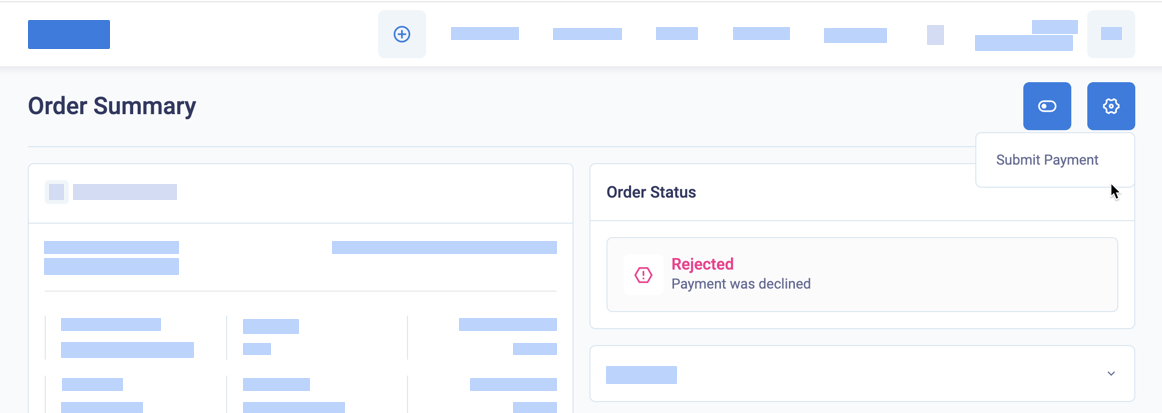
Try to make the initial payment again for a rejected order
- If a phone payment was declined because Strong Customer Authentication was required, but you did not select 3DS Required, select it now and enter the card details again, or send a payment link.
-
To send a link to request a payment or card registration, click Email Payment Link, SMS Payment Link or Display URL and QR Code.
When the initial payment or card registration is approved, the order becomes Active for recurring payment orders. Single-payment orders with pre-authorisation also become Active. Single-payment orders with debit payments become Complete.
Updated 10 months ago