

Create orders
Create an order and collect its first payment
An order is a sale. It links a customer to the products they buy, and sets how and when they pay.
Order types
The order's type comes from its products. You can use the types your merchant account allows. See Purchase types.
| Order type | How the customer pays | See |
|---|---|---|
| Single payment | The full price in one payment. Can include several products. | Create a single payment order |
| Instalment | A deposit, then scheduled payments until the balance is paid. | Create an instalment order |
| Subscription | A fixed price at a regular interval until it's cancelled. | Create a subscription order |
| Metered | Variable amounts, charged when you need to. | Create a metered order |
Before you start
- At least one product. The product sets the order's starting price and payment terms. If they aren't locked, you can change them in the order. See Create your product catalogue.
- A customer, or their details to add them while you create the order. See Create customers.
Create your first order
This walkthrough sells a basic single payment product to a new customer.
1. Create a basic product
- On the navigation bar, click + and select Add Product.
- Enter a Product Name. You can call it anything you like.
- Click Next, keep Single Payment as the Purchase Type, and click Next again.
- Leave the price at
0, keep Lock Price off, and click Finish.
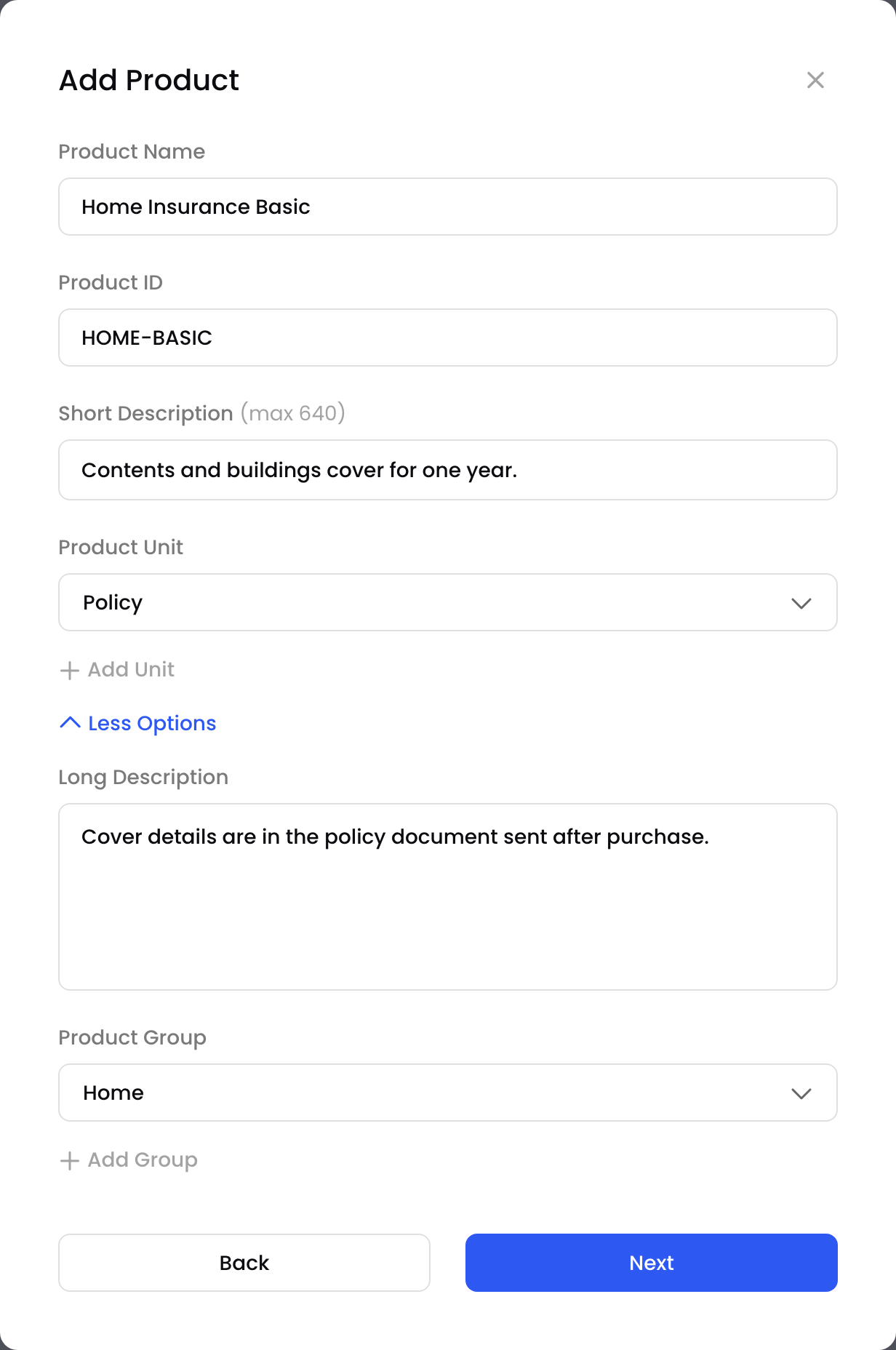
Name your product
This is the simplest product you can create: a single payment product with an unlocked price of 0 in your base currency. You set the real price in the order.
Basic productsBasic products are handy when your sales team sets the price in each order, or when you set prices through the API.
2. Add a customer in the order
- On the navigation bar, click + and select Add Order.
- Beside the Customer field, click +. The Add Customer pop-up opens.
- Enter the customer's First Name, Last Name and Email. BillPro sends payment links and notifications to this email.
- Optional: enter a Phone Number to send payment links by SMS.
- Under Billing Address, enter the Postal Code and Country.
- Click Add. The customer is selected in the order.
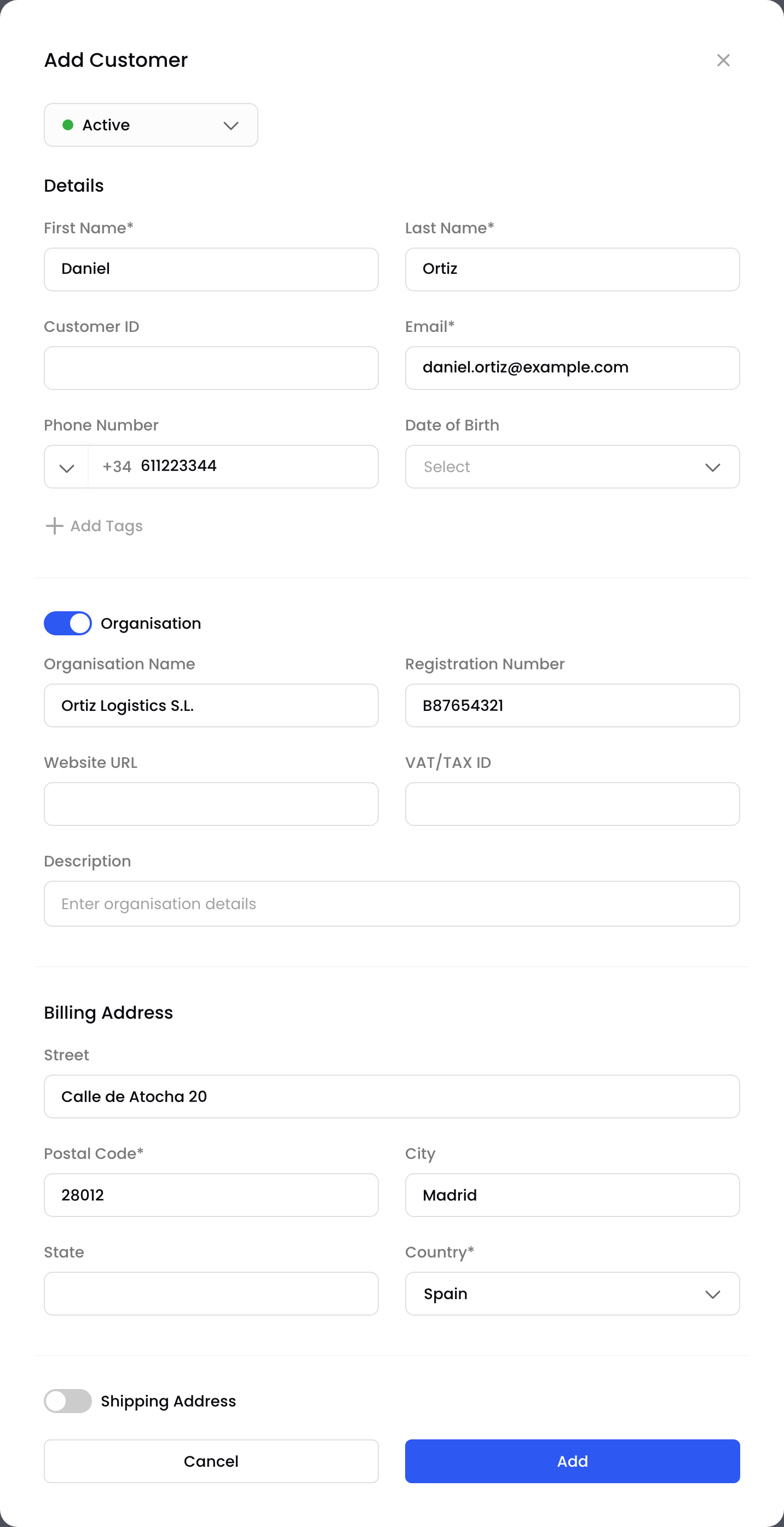
Add a customer
3. Add the product and pricing
- Under Products, select your product and enter the Qty.
- Enter the Amount: the price per unit, including tax.
- Optional: under Additional Parameters, turn on Save Card Details to save the customer's card for future orders. BillPro stores a secure token, not the card data.
- Check the Summary on the right and click Add Order.
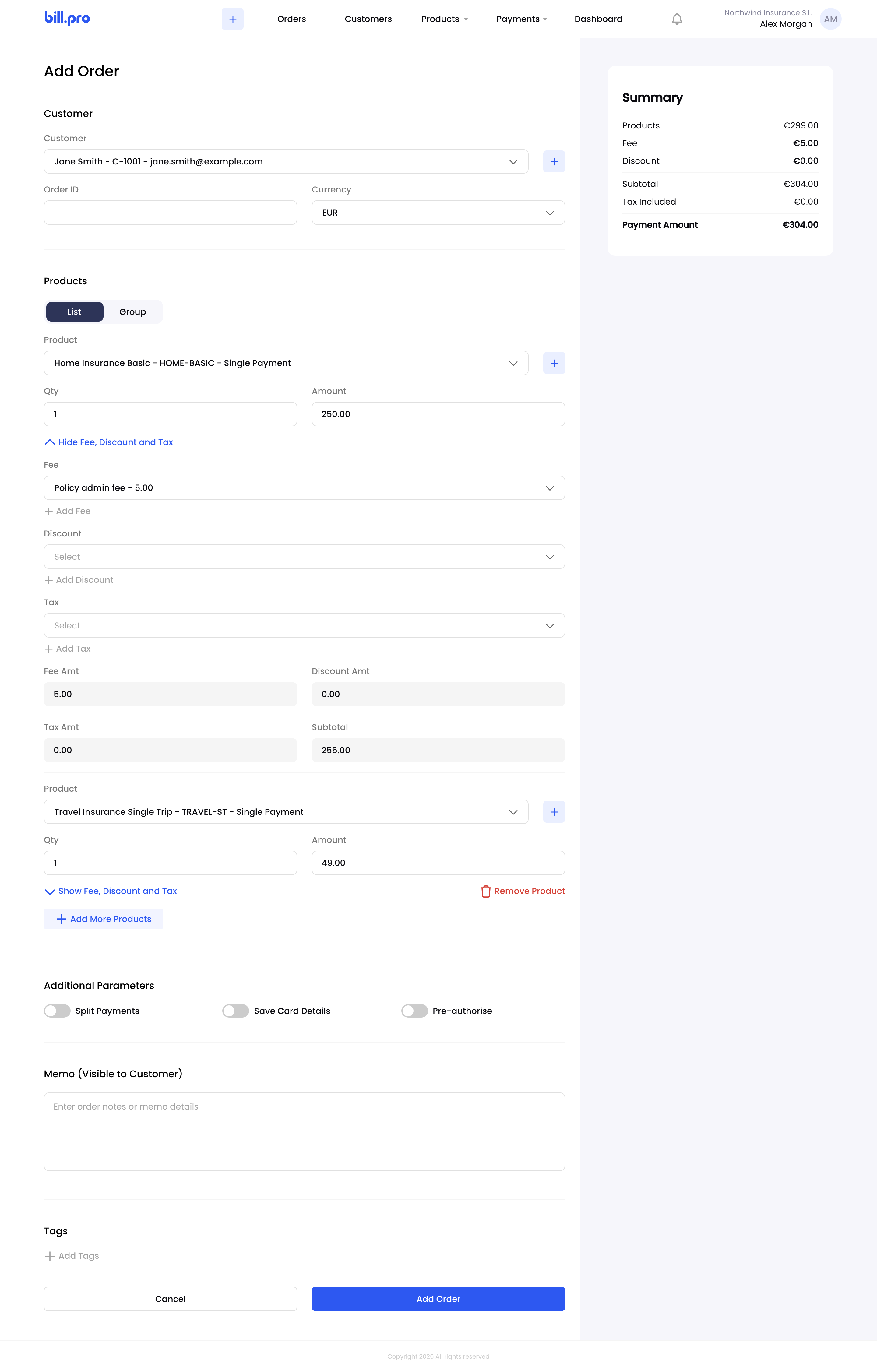
Add the product and price
BillPro creates the order as Draft and opens the Payment Details page.
4. Collect the payment
On the Payment Details page, choose how to collect the payment:
- By phone: enter the card details in the virtual terminal and click Pay Now. To save the card, use 3DS Verified. See Take a phone payment.
- By link: click Email Link or SMS Link, or URL and QR to copy the link or show a QR code for face-to-face payments. See Collect payments.
- Later: leave the page. The order stays
Draftand you can collect the payment from the order at any time.
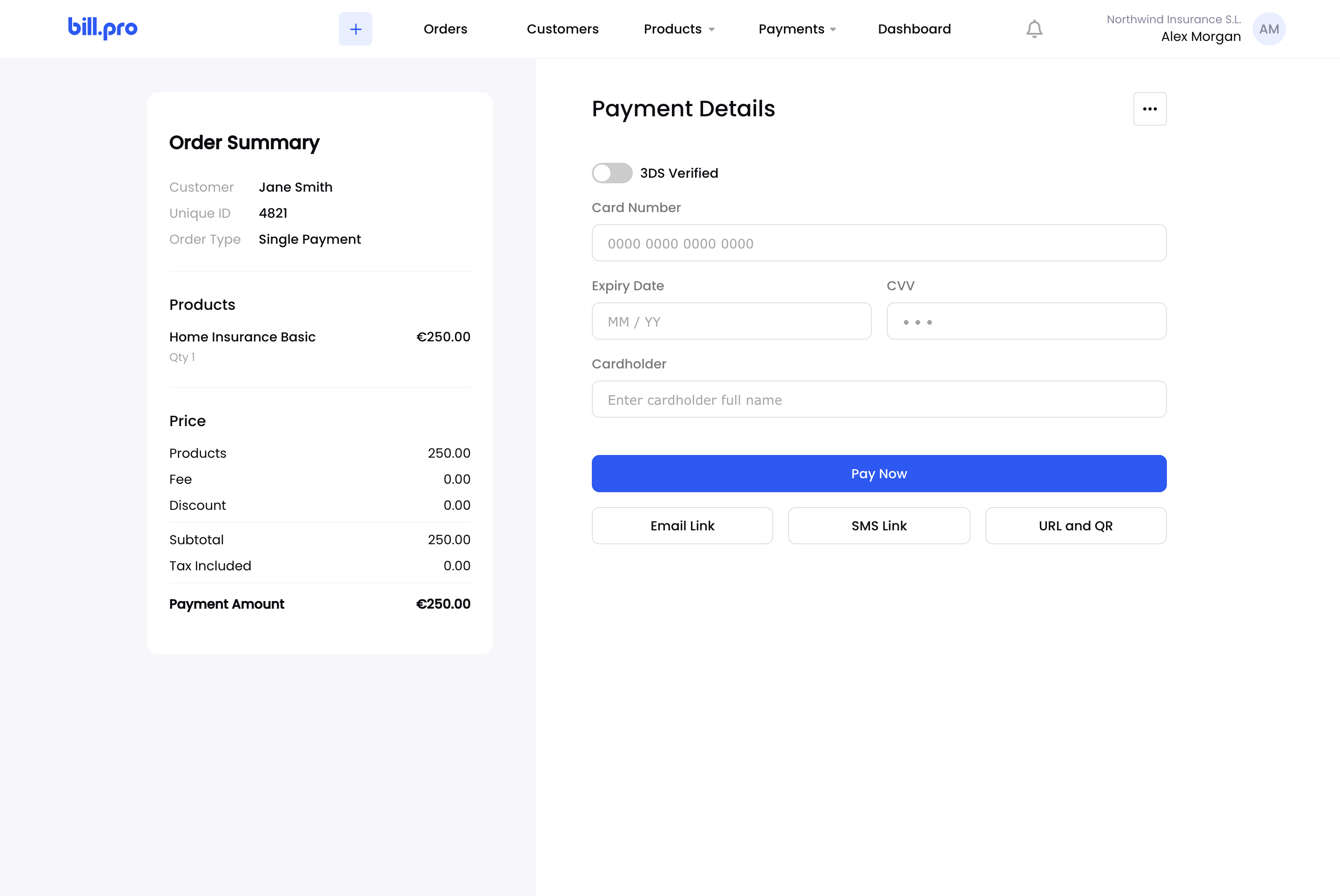
Take a phone payment or send a payment link
Your order now shows in Orders, with a status icon that follows the payment.
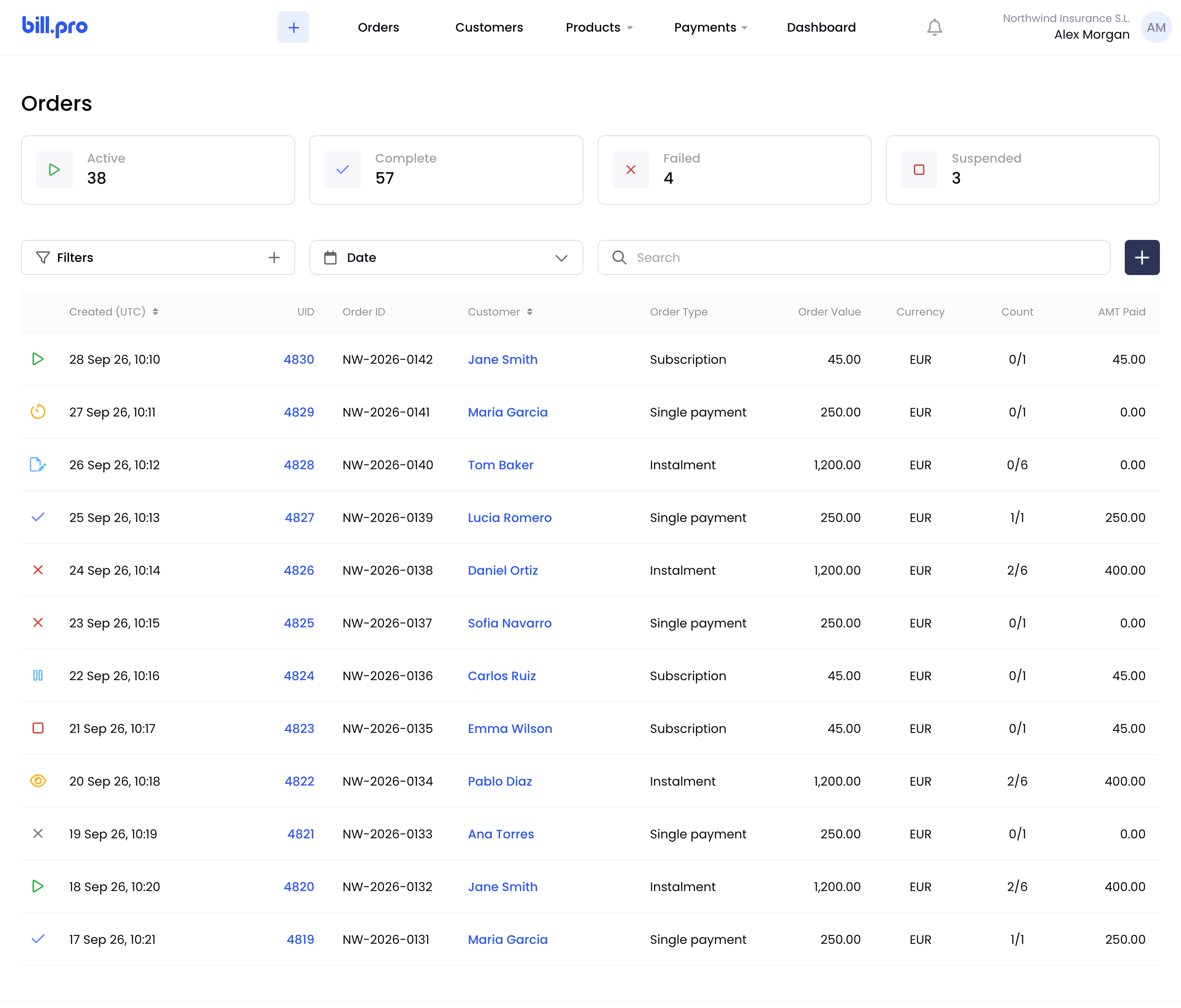
Your orders
For what each status means, see Order statuses.
Next, try the other order types: Split payments on an order or Create a subscription.
Ways to create orders
- In BillPro: best for phone sales and orders your team handles.
- With the API: create orders from your own systems, such as your CRM or website. See Orders.
- Both: create orders with the API, and let your team collect the payments in BillPro.
Updated 12 days ago
Recommended reading
Read more about creating an order for your purchase types