

Actions on orders
In the order portal, customers can cancel subscriptions, change their cards, and download documents.
Cancel subscriptions
For a subscription, the customer opens the menu beside the order information and selects Cancel Subscription. They confirm, or click Keep subscription to go back.
After the customer cancels, the subscription is Cancelled in BillPro and in the order portal.
Update cards
Customers can add, choose and update cards in the order portal. They can also remove cards they don't use.
Add a new card
To add a card to an active order, the customer clicks Add Payment Method. BillPro opens a 3D Secure checkout, and the customer enters their card details. BillPro then uses the new card for the order.
Choose another card or remove one
Under Payment Method, the customer can select another saved card for the order, or remove a card they don't use.
Update a card after an expiry or a declined payment
BillPro emails the customer when a card is expiring or has expired, or when a payment is declined. See Notifications.
The order portal then shows a red Update Card button, and updating the card is the only card action.
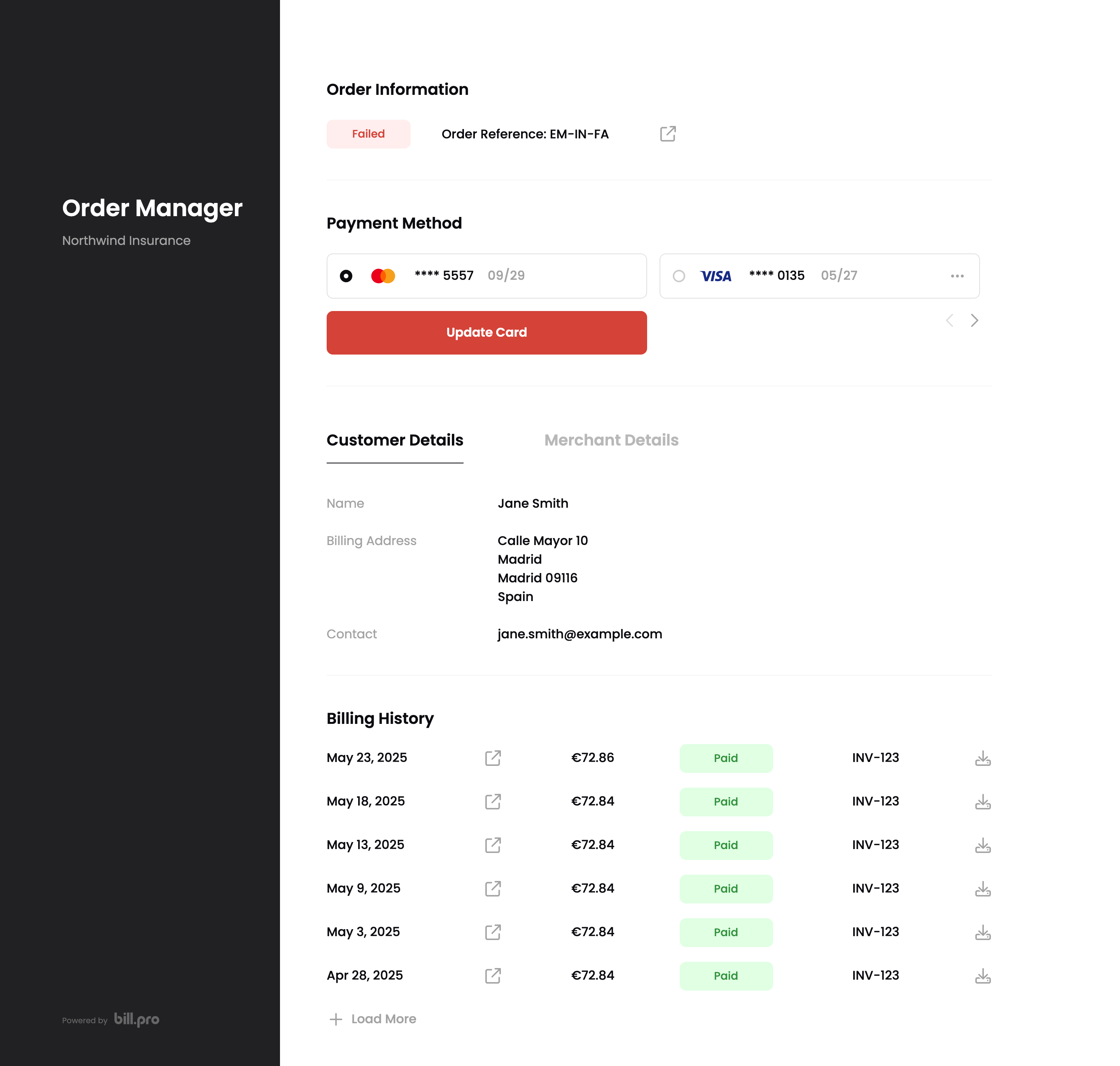
Update the card
When the customer clicks Update Card, BillPro shows the outstanding amount. When they enter their card, they pay it.
Paused, cancelled and complete orders
For Paused, Cancelled and Complete orders, customers can only see their order and download invoices, receipts and credit notes. They can't change cards or cancel.
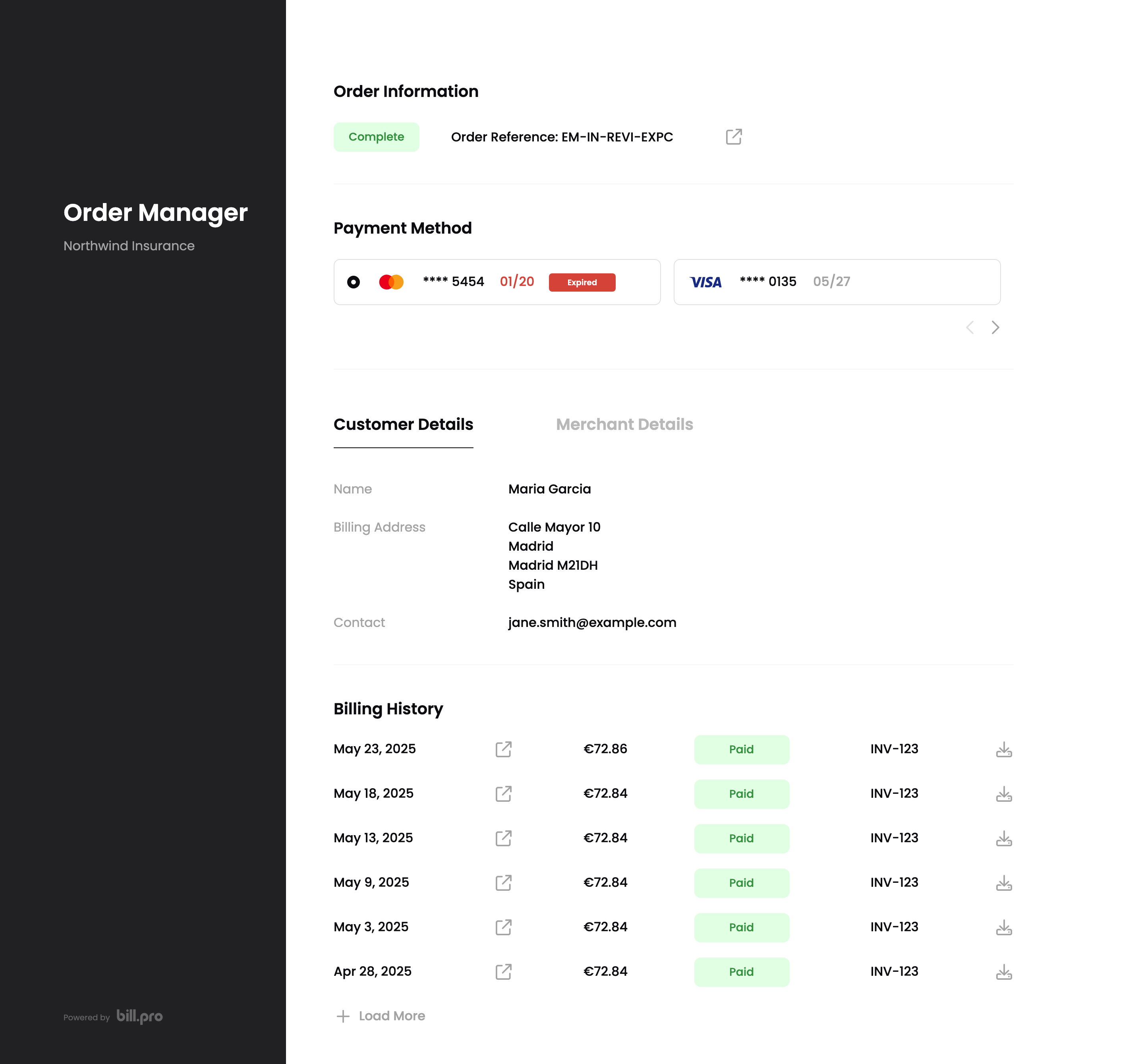
A complete order
Updated about 1 month ago