
Order portal main order screen
Display order status, payment methods, and billing history
The main order screen displays the order status and payment methods and the billing history list. The order status, order details, and billing history are updated after each recurring payment.
Order status and order details button
The order portal displays the status of the order, which depends on the type of order and the status of the last payment. For example, the Active status is for recurring payment orders where the last payment was approved. For more details, see Order status and Order flow.
If the order is an instalment order with the Review status, this order will display as Complete in the order portal. It is important to resolve issues with orders with the Review status as soon as possible. For more details, see Process overpaid instalment orders.
To display the order details, the customer can click the View order details button at the top of the order, beside the Order Reference. For more information, see Order details view below.
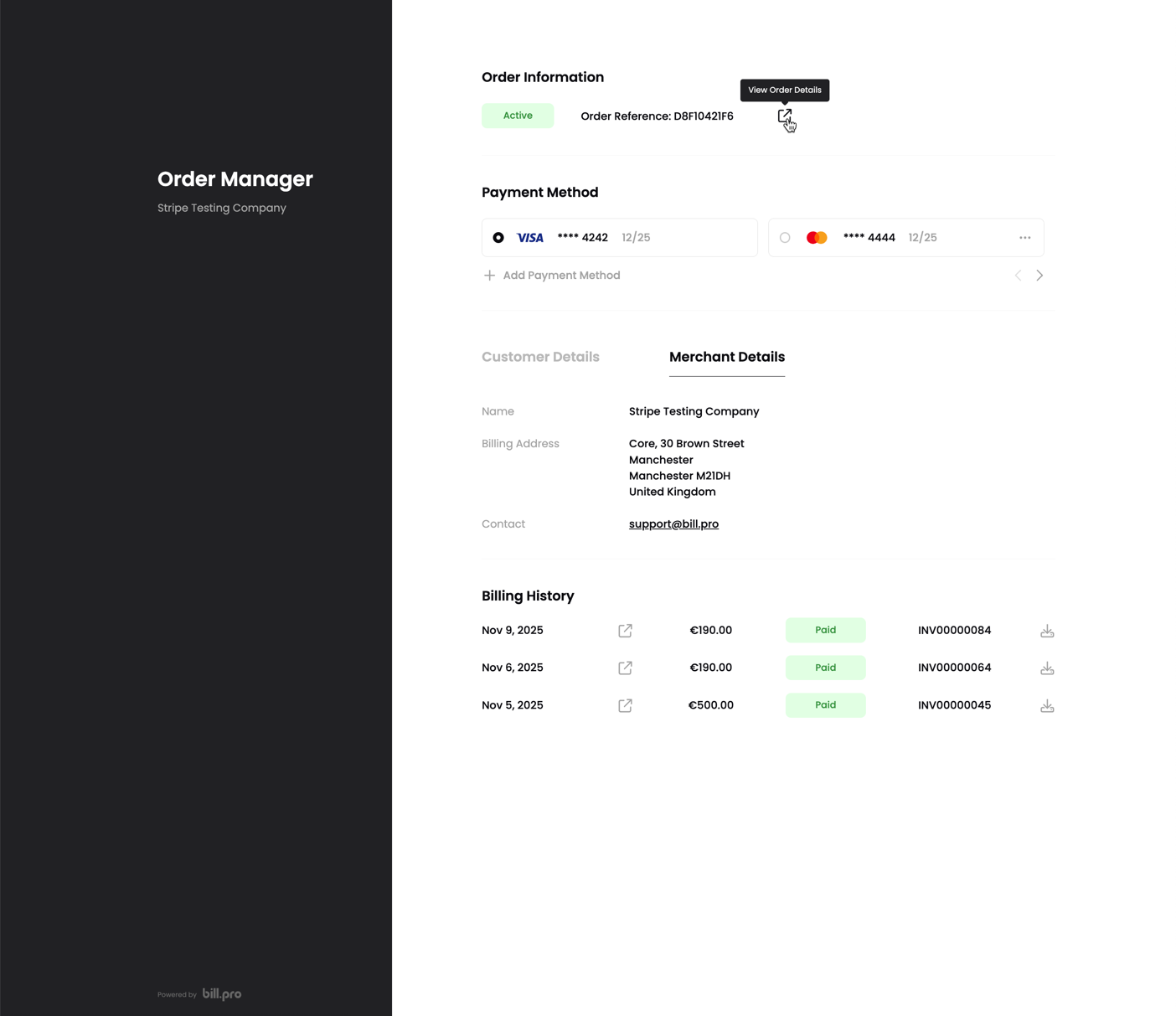
For subscription orders, the customer can cancel their own order from the options button to the right of the order status and reference sections.
Payment methods
In the Payment Methods section, the customer can add new cards, select other cards, and remove unused cards.
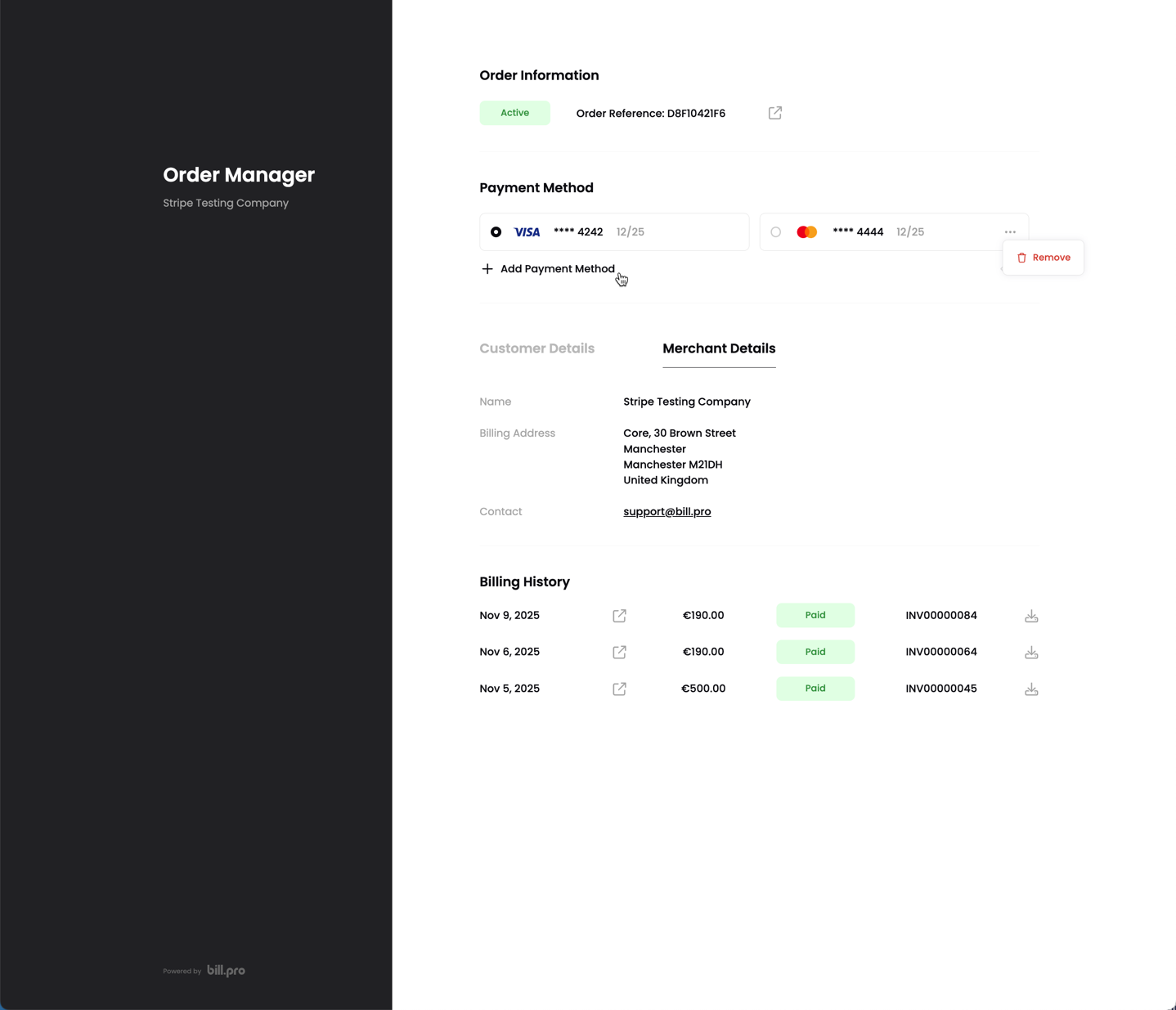
For expiring or expired cards, and for declined payments, the customer receives a notification to go to the order portal and update their card.
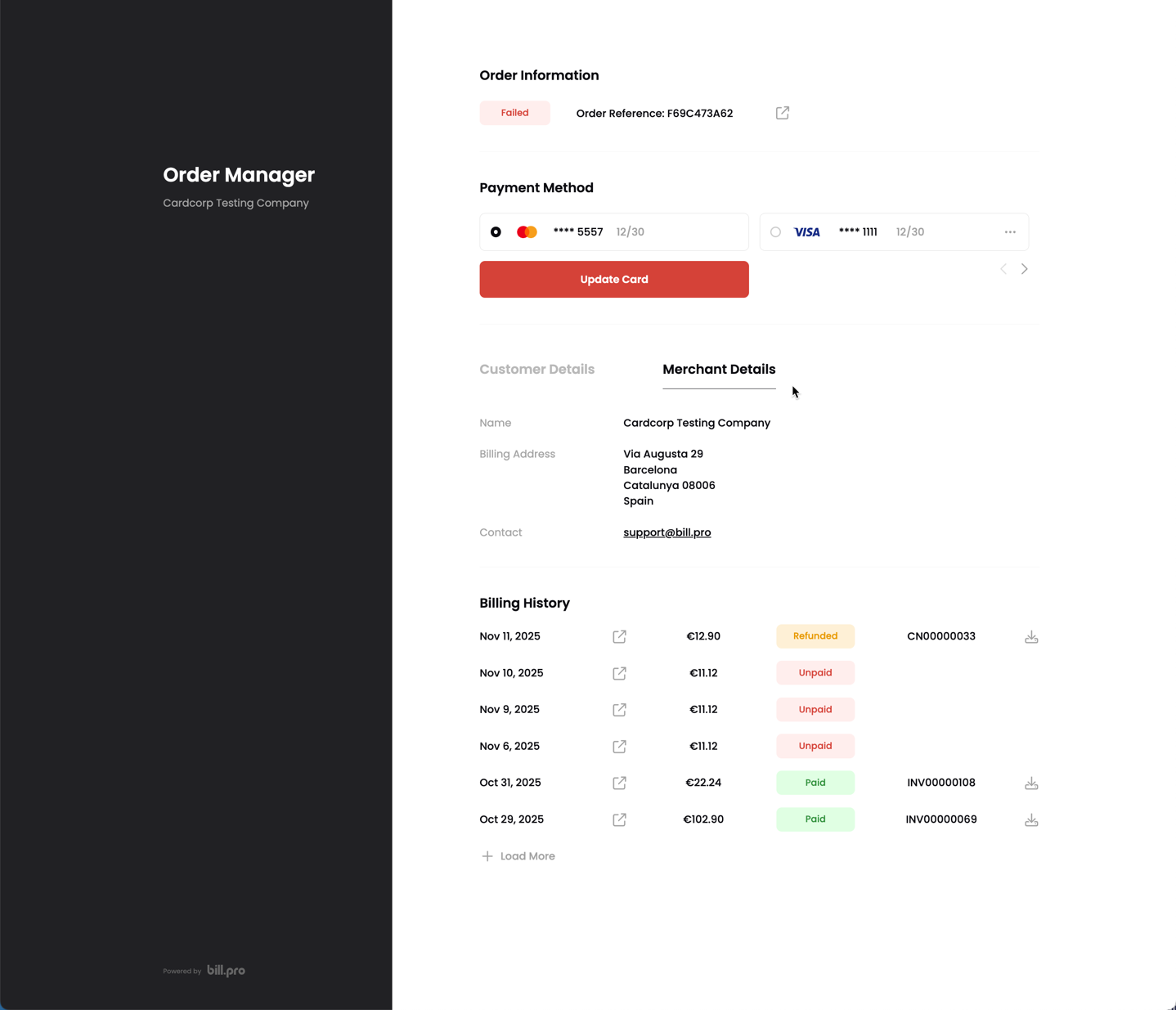
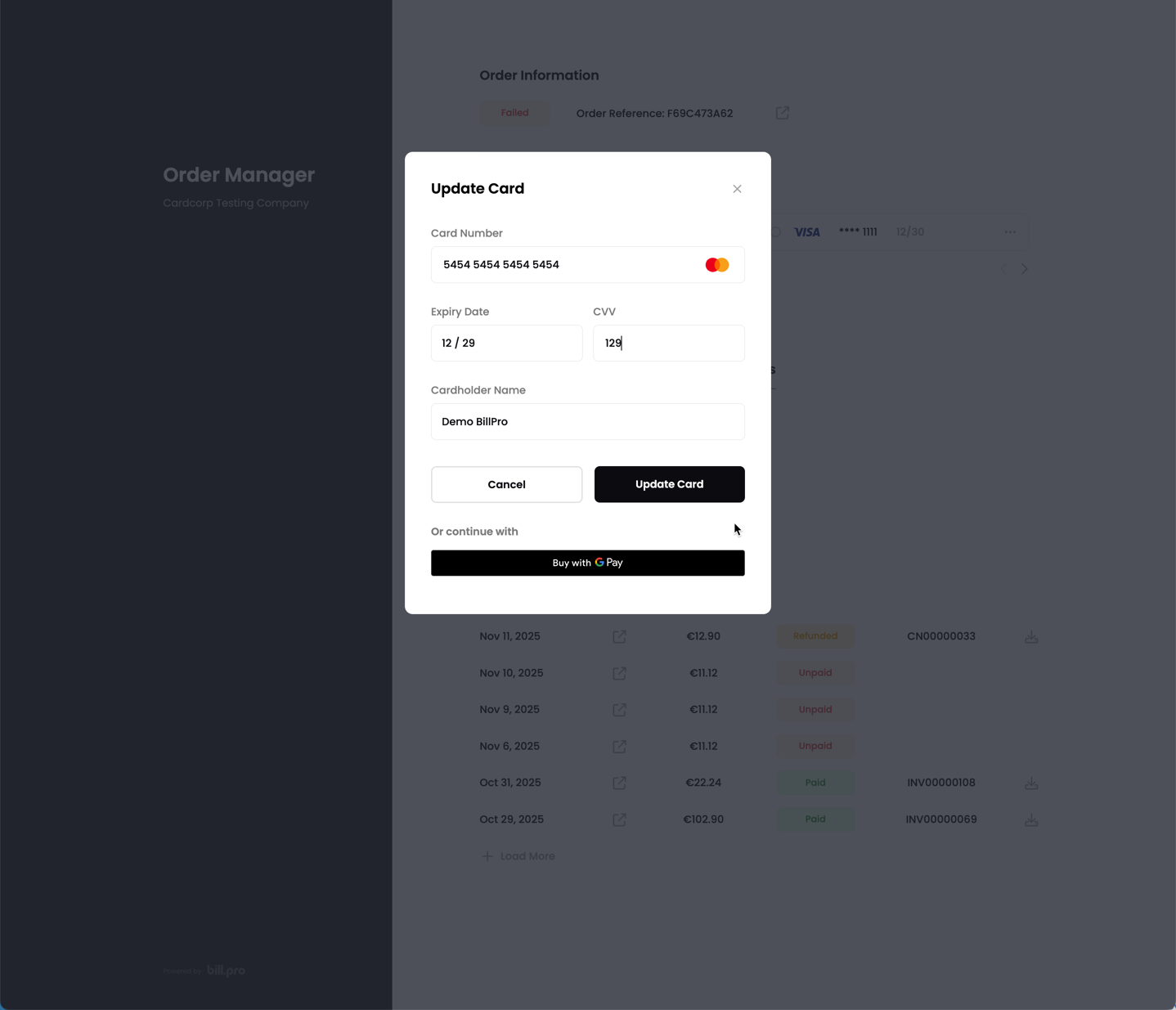
When the customer clicks Update Card, BillPro displays the outstanding amount for the customer to confirm.
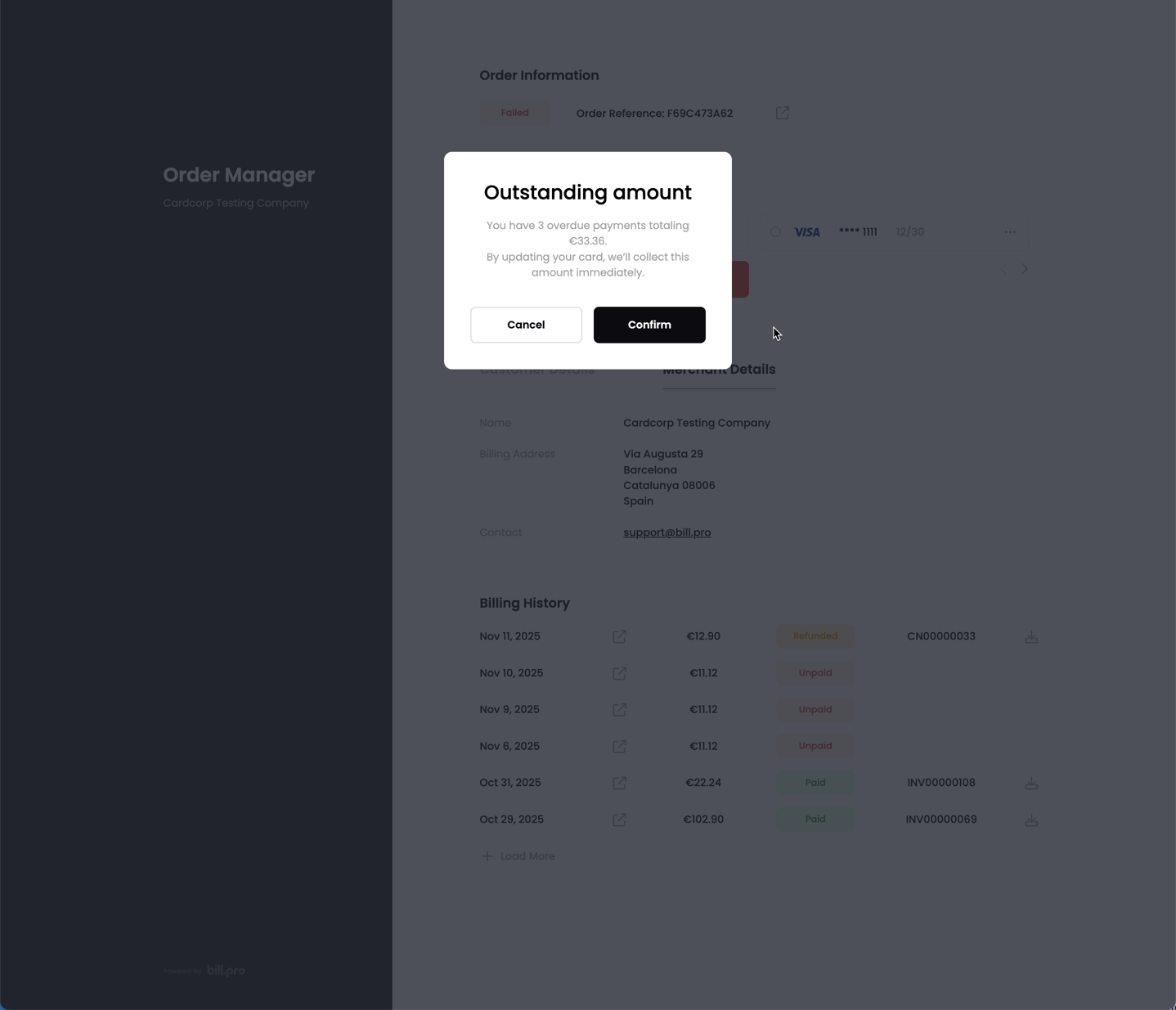
After the customer confirms, BillPro opens a secure checkout and the customer can enter their card details. When the customer clicks + Add Payment Method, BillPro also opens a secure checkout and the customer can enter their card details.
Billing history
From the Billing History, the customer can view all payments, view the details of approved payments and refunds, and download invoices and credit notes.
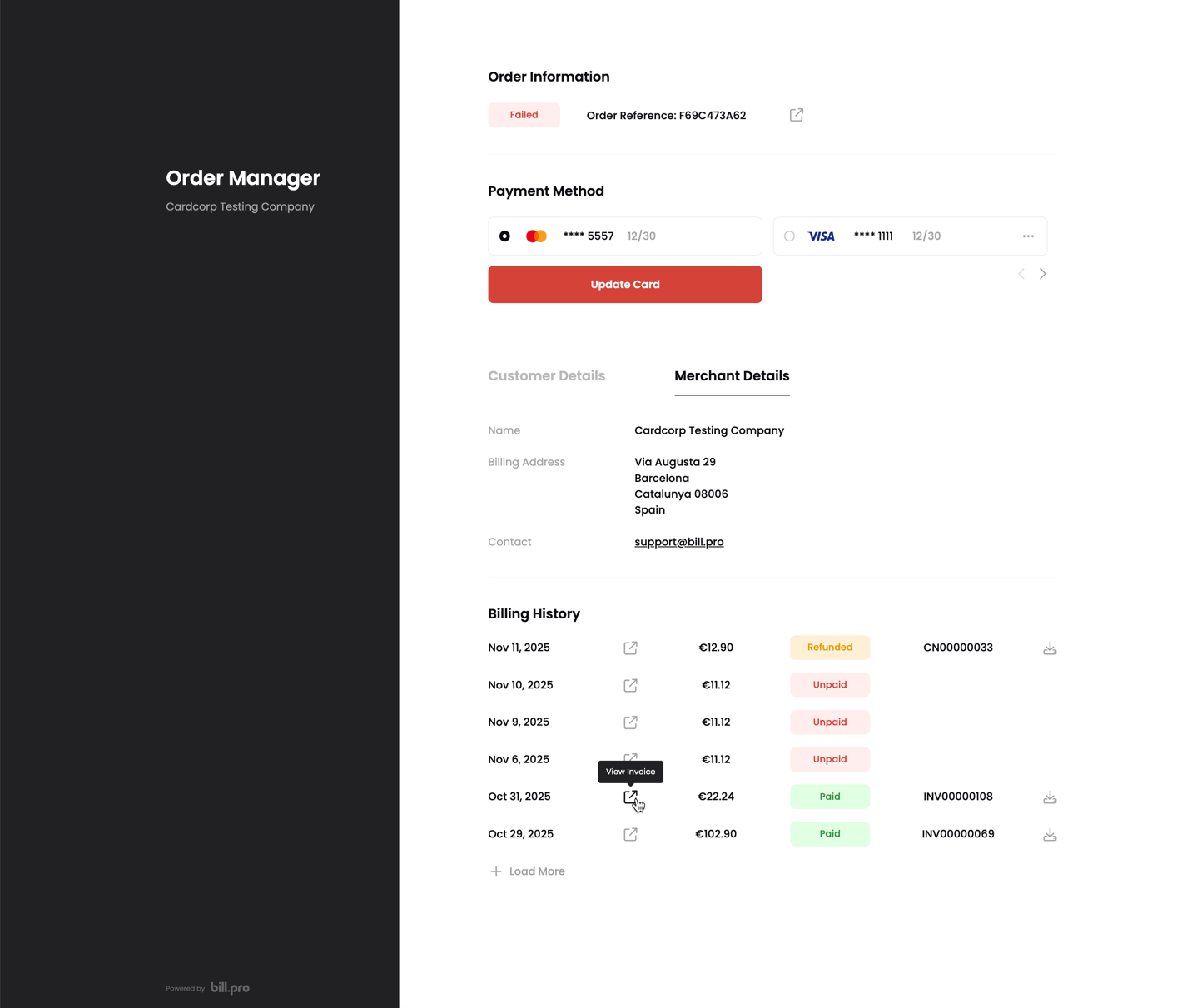
To open the Invoice details view, the customer can click the button near a billing history line.
Updated 9 months ago