

PDF invoices, receipts, and credit notes
Self-service PDF documents for your customers
Customers download their order documents as PDFs from the order portal. The order summary is always available. Invoices, receipts and credit notes are available once you activate them.
What customers can download
| Document | Where in the order portal | Available |
|---|---|---|
| Order summary | Order details view: Download Summary | Always |
| Invoice | Billing History: download icon beside a paid payment. Invoice details view: Download Invoice | When invoicing documents are on |
| Receipt | Invoice details view: Download Receipt | When invoicing documents are on |
| Credit note | Billing History: download icon beside a refund. Credit note details view: Download credit note | When invoicing documents are on |
On a phone, the Billing History has no download icon: the customer opens the payment and downloads from its details view. A declined payment has no invoice or receipt. See Order portal details views.
Turn the documents on
Users with the admin_user role can turn them on:
- Open the profile menu and select Invoice Configuration.
- Click Edit and turn on Activate Invoicing Documents.
- Optional: turn on Disable Invoices, Disable Receipts or Disable Credit Notes to hide one document type.
For numbering and format settings, see Activate PDF invoices, receipts, and credit notes.
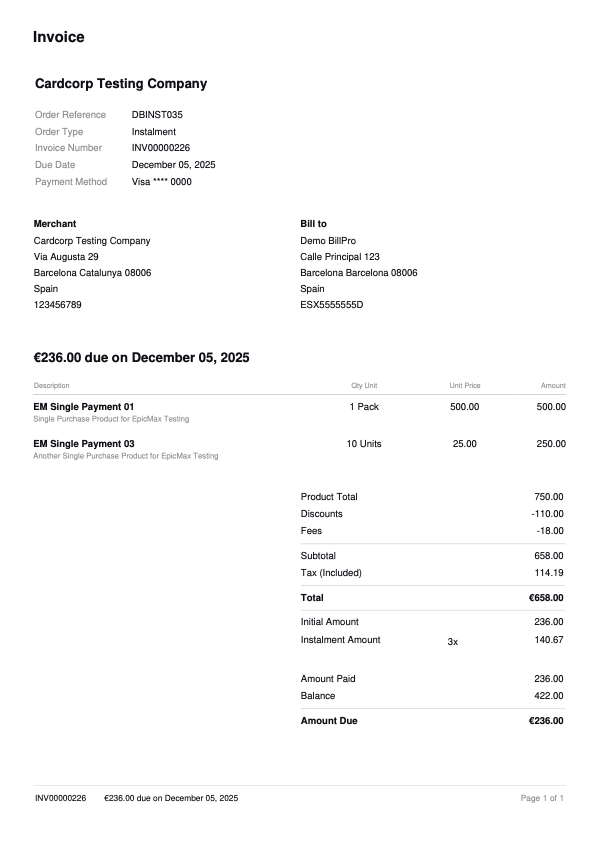
Sample invoice
Each purchase type has its own invoice layout. See PDF documents.
Updated about 1 month ago
Recommended reading
Activate PDF billing documents
Did this page help you?