

Buy from a product page
What your customers see when they buy from a product page
This page shows what your customers see when they buy from a product page. Customers go through three steps: the product, their details, and the checkout.
1. Choose the product
The customer opens the link. The page shows:
- The images, your trading name, the product name and the price. A discounted price shows the original price struck through.
- The short description, and the full description under Description.
- For a single payment product, the attributes and a Quantity.
The customer chooses their options and clicks Continue to payment.
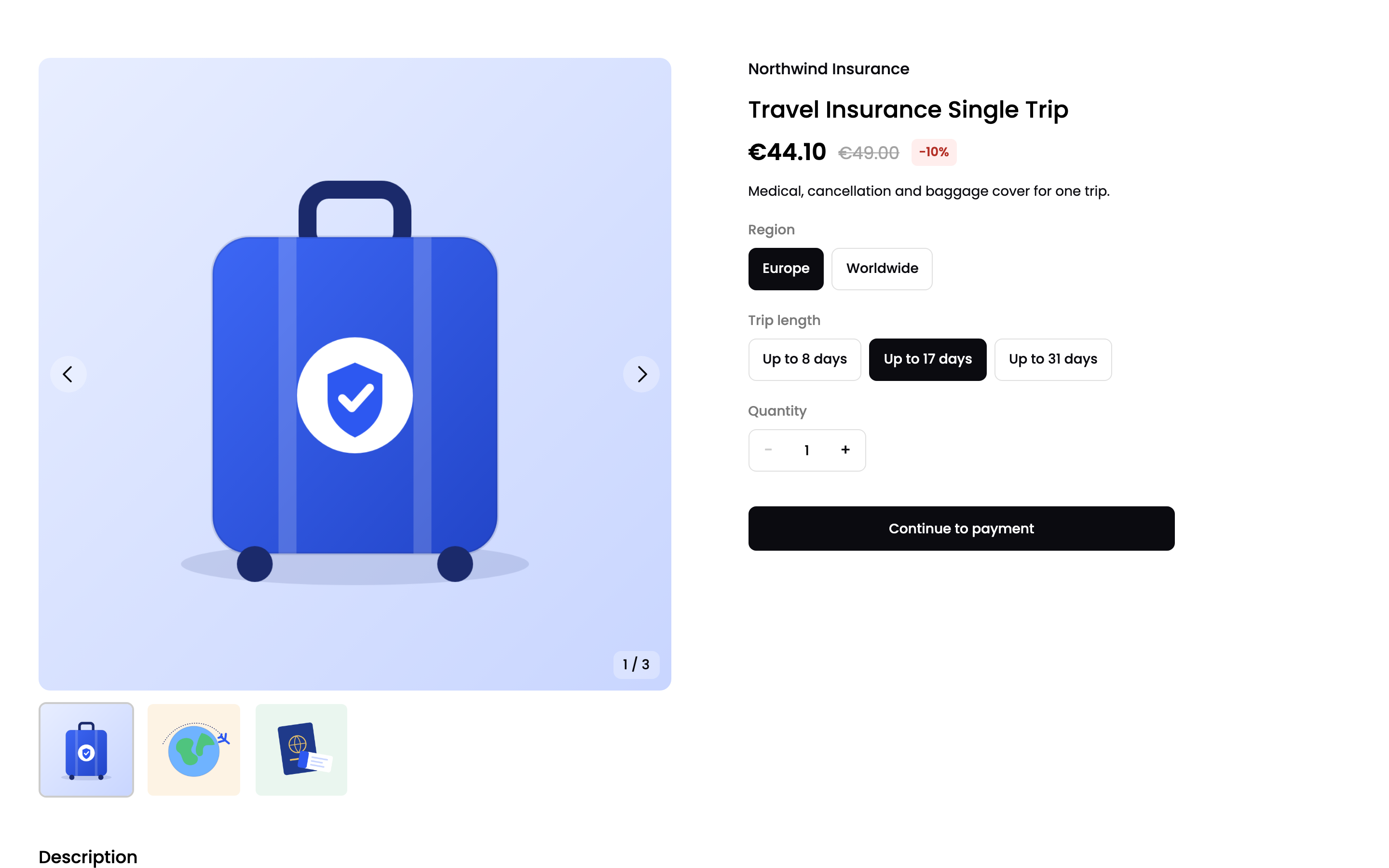
A single payment product
A subscription shows the recurring price and how often it's charged, such as /month. Subscriptions have no options or quantity.
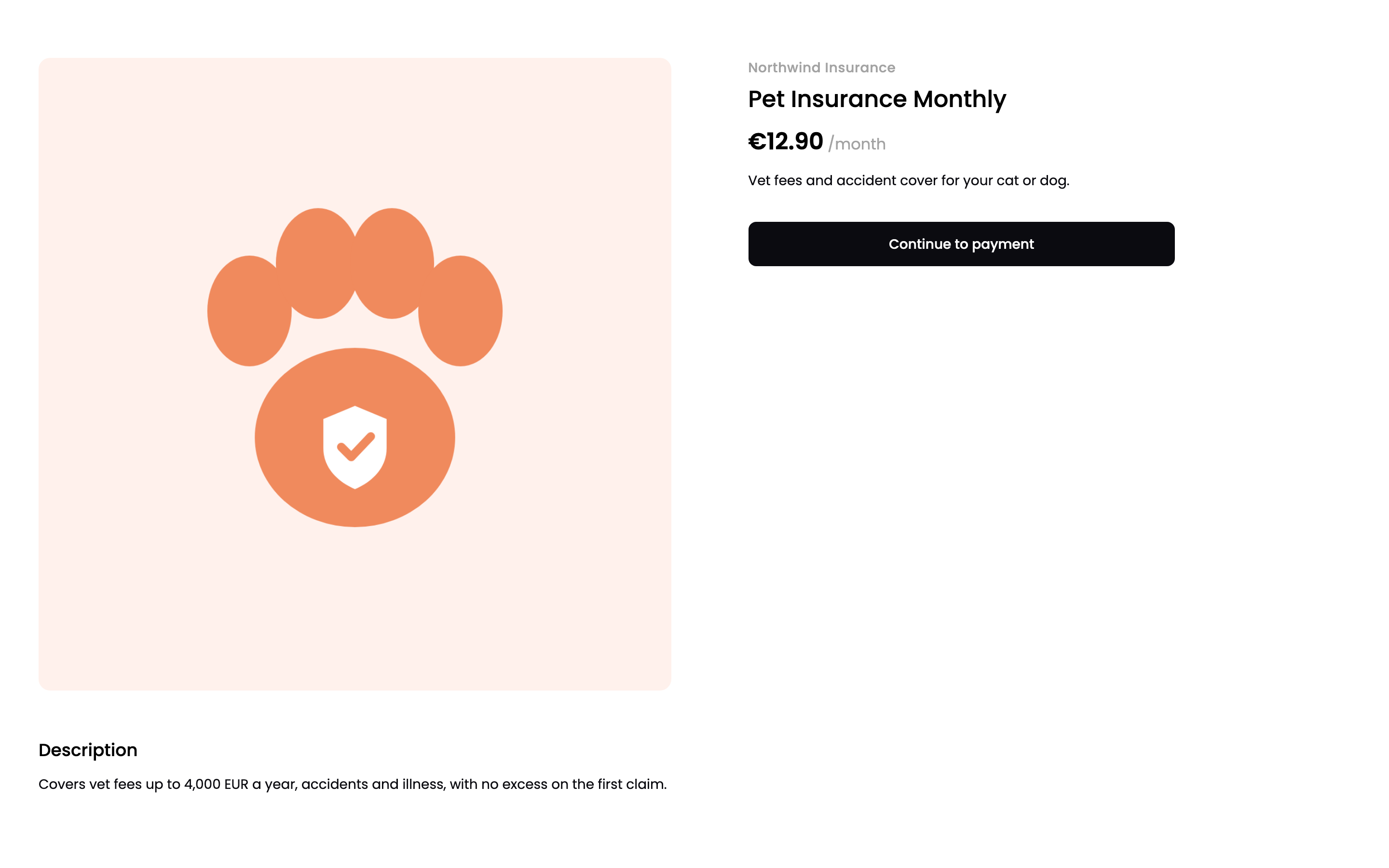
A subscription product
2. Enter customer information
The customer enters their First Name, Last Name, Email, Address, Country and Postal Code. Phone is optional. To add a company name and VAT number, they select Company details.
For a single payment, the customer can select Save card details to save their card for later payments.
The customer must agree to your terms and conditions and privacy policy. The links go to the URLs in your merchant profile. See Configure BillPro with CardCorp.
The Order Summary on the left shows the options, quantity and total. The customer clicks Continue to checkout.
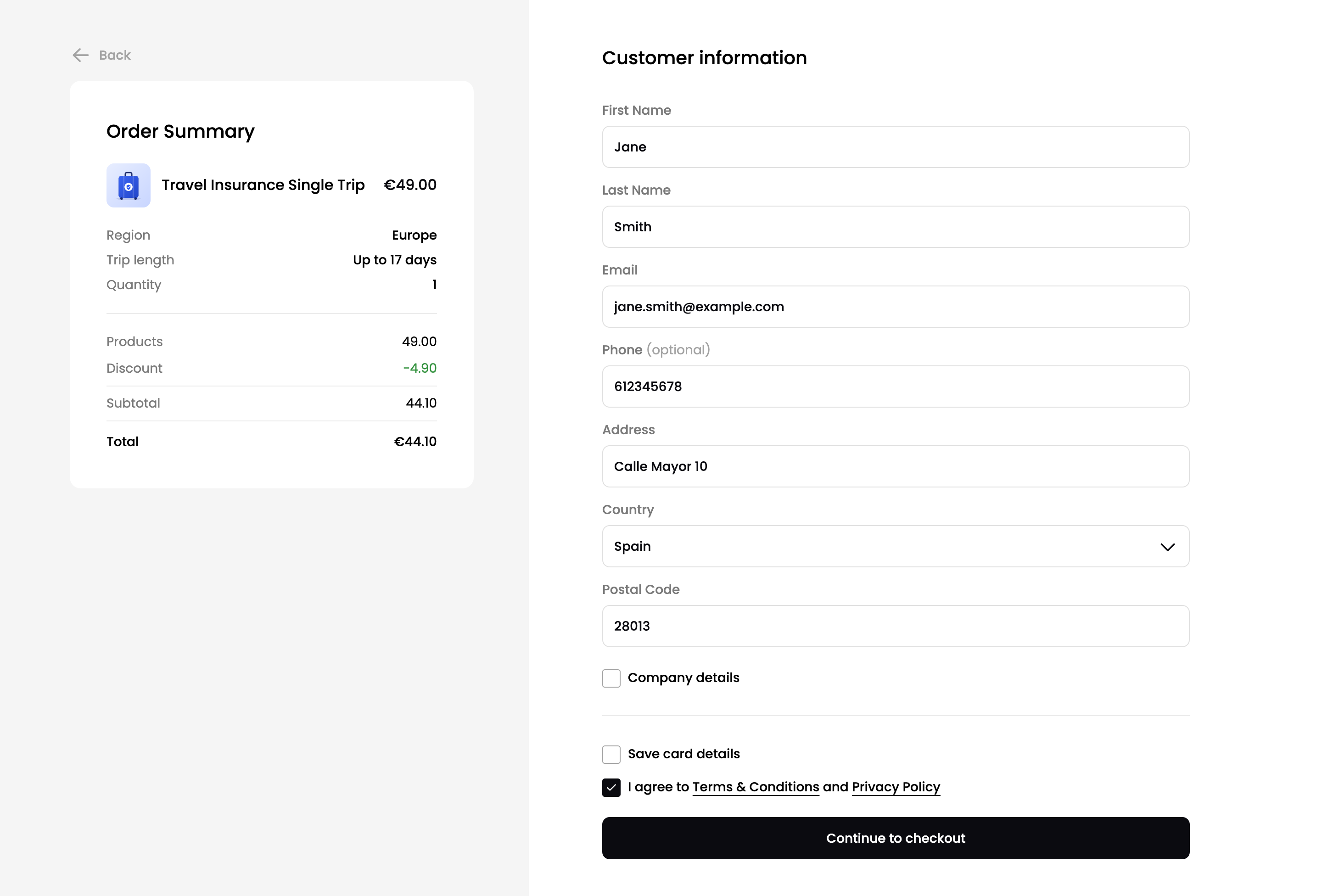
Customer information
Existing customers
If the email already belongs to one of your customers, BillPro emails them a 6-digit code. The customer enters the code in Check your email and clicks Confirm. This stops anyone from placing orders in another customer's name.
The code expires after a few minutes. The customer can click Send a new code.
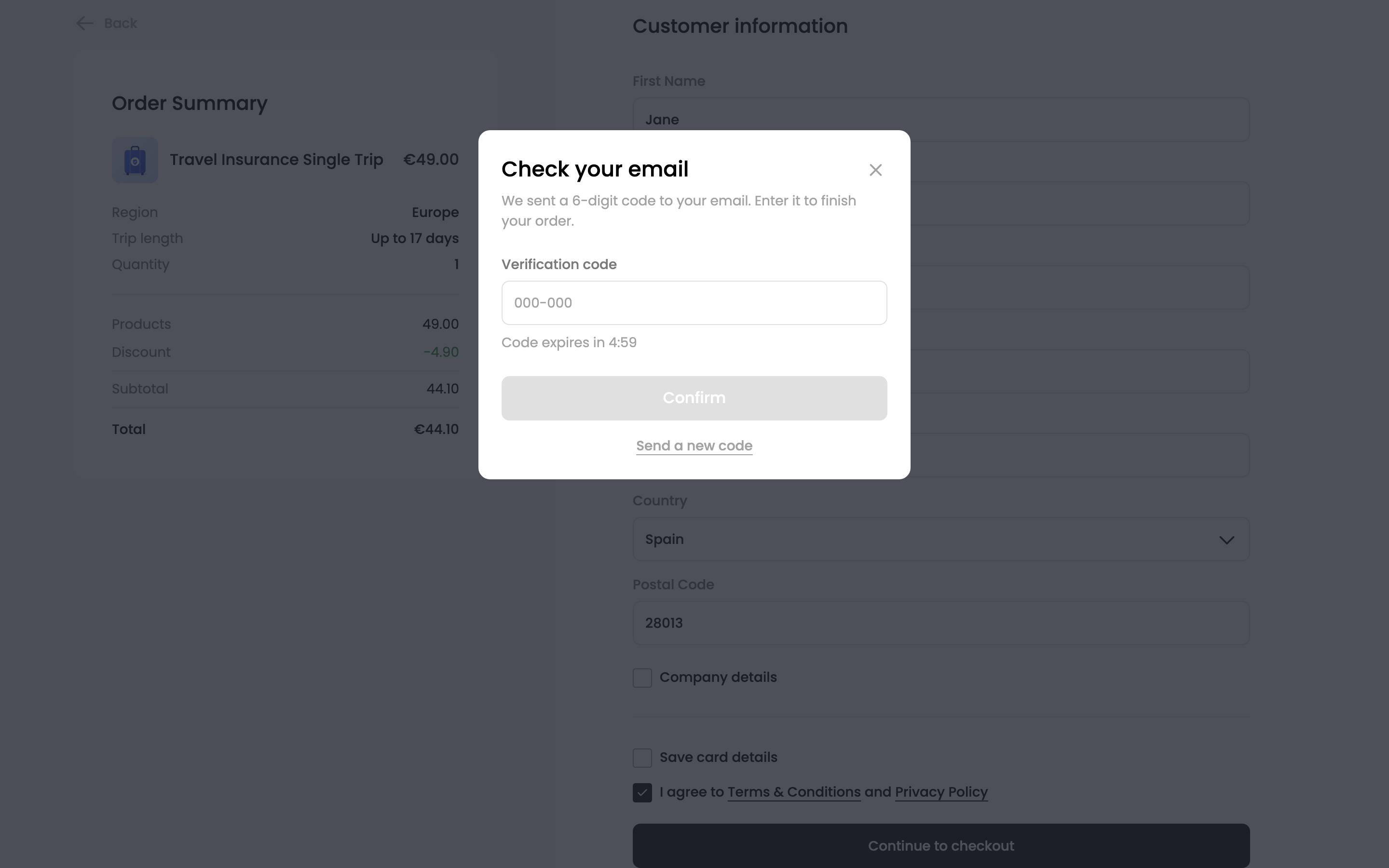
Verify an existing customer
3. Pay at the checkout
BillPro creates the order and opens the checkout. The customer enters their card details and clicks Pay Now. The card issuer may ask the customer to verify the payment with 3D Secure.
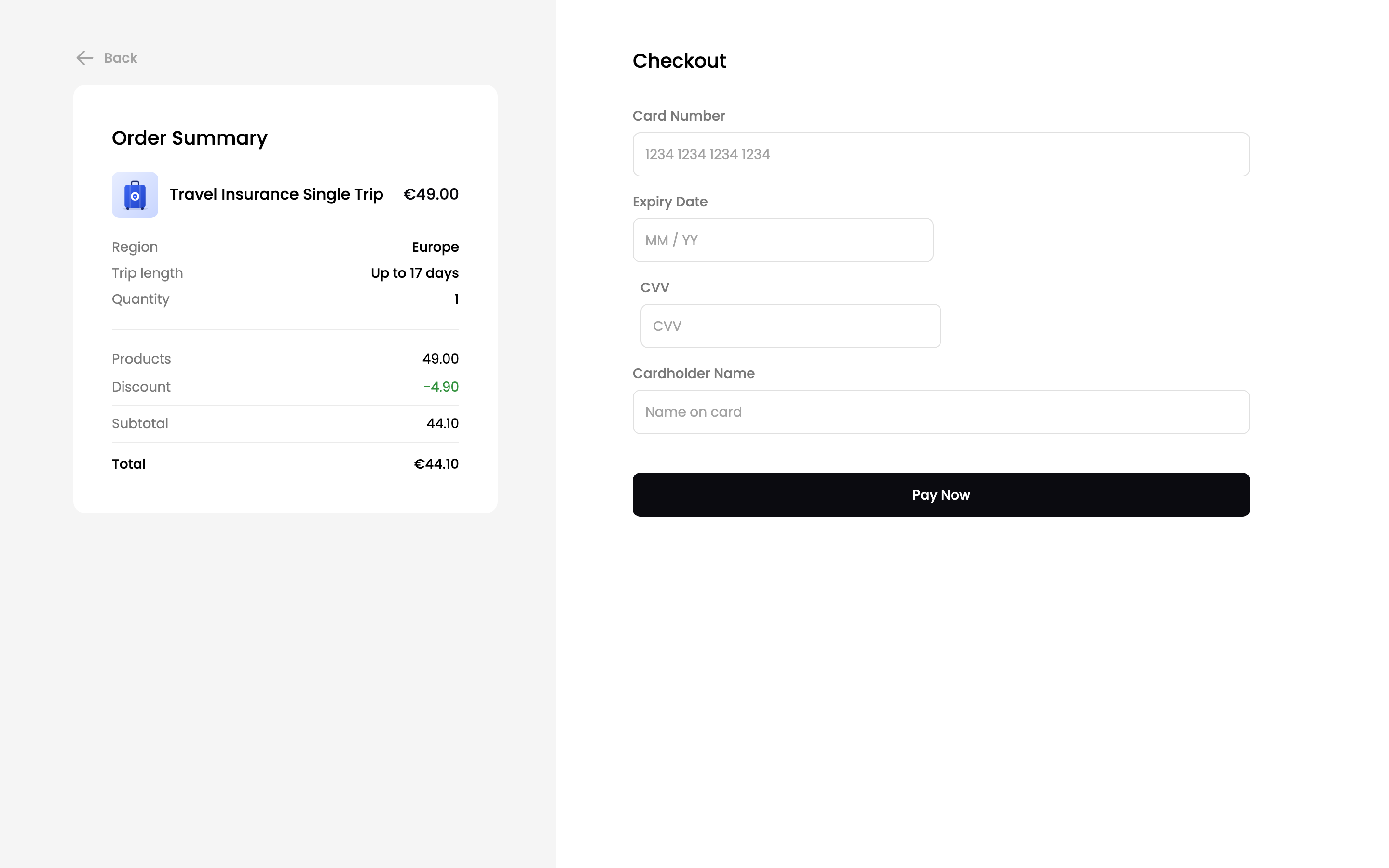
The checkout
When the payment is approved, the customer sees Payment Successful.
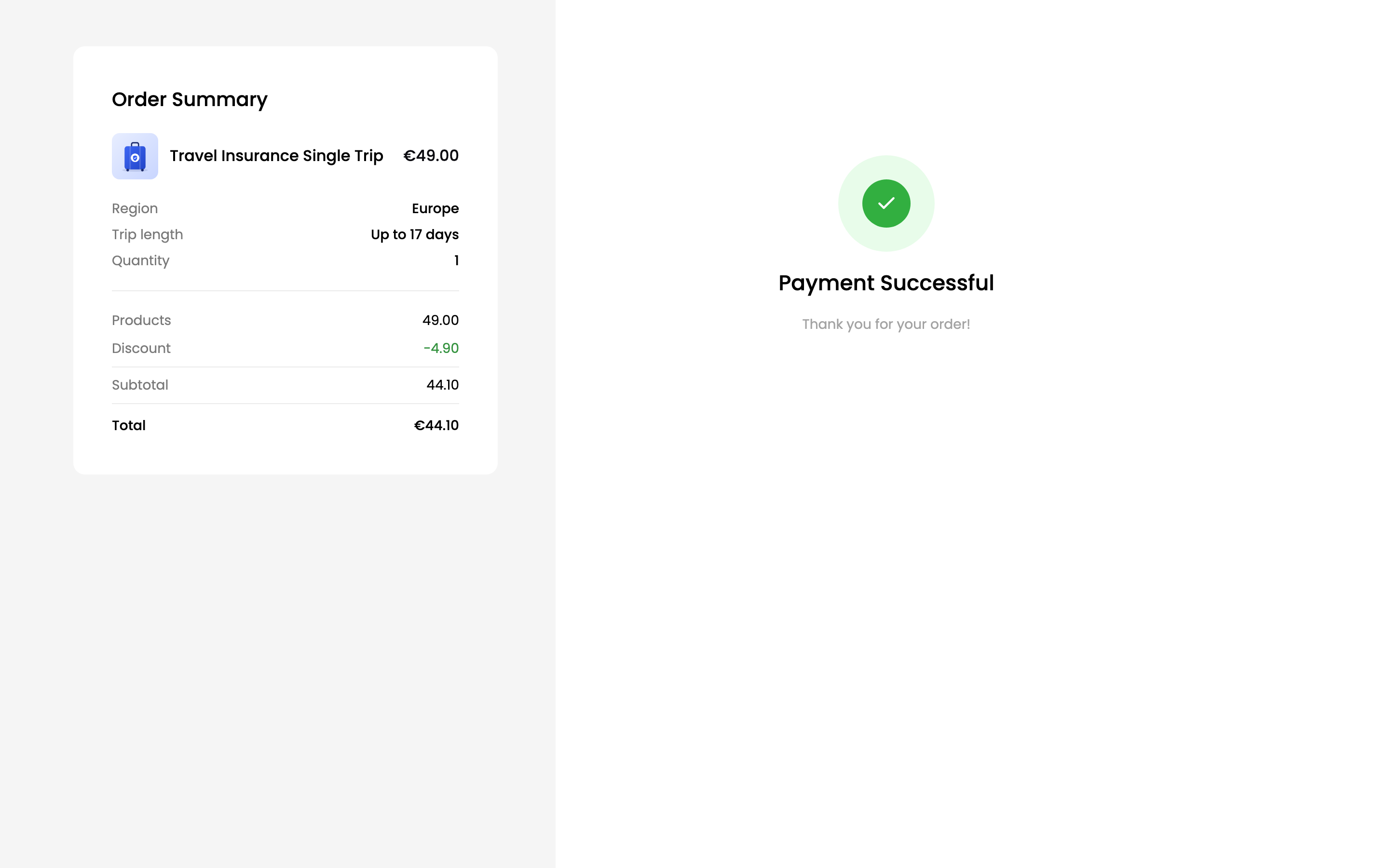
Payment approved
If the payment is declined, the customer sees Payment Failed and can click Retry Payment.
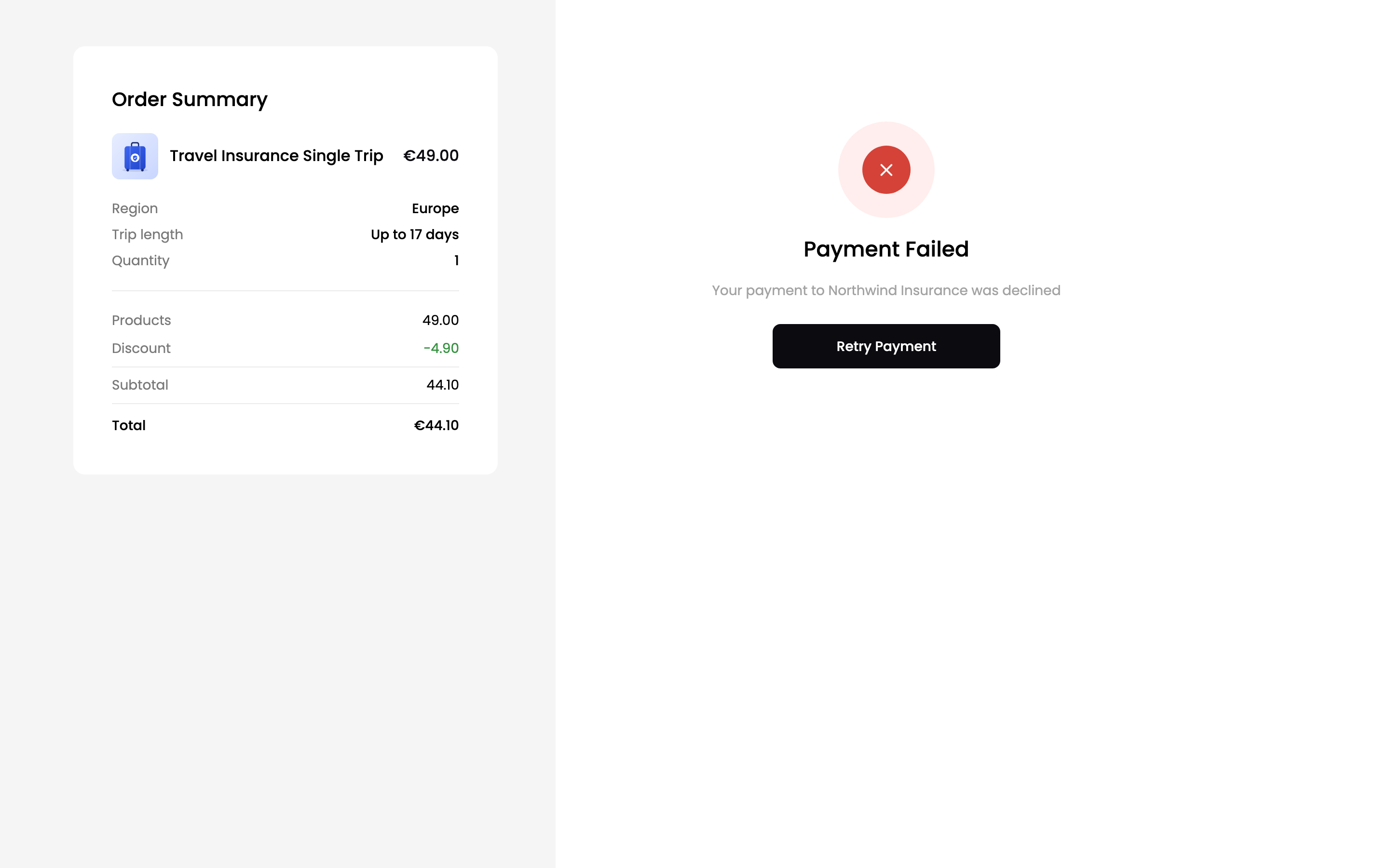
Payment declined
After paying, the customer gets the same emails as for any other order, with a link to the order portal. See Notifications and Order portal overview.
Unavailable pages
If the product is inactive, or its page is turned off, the link shows This page is unavailable.
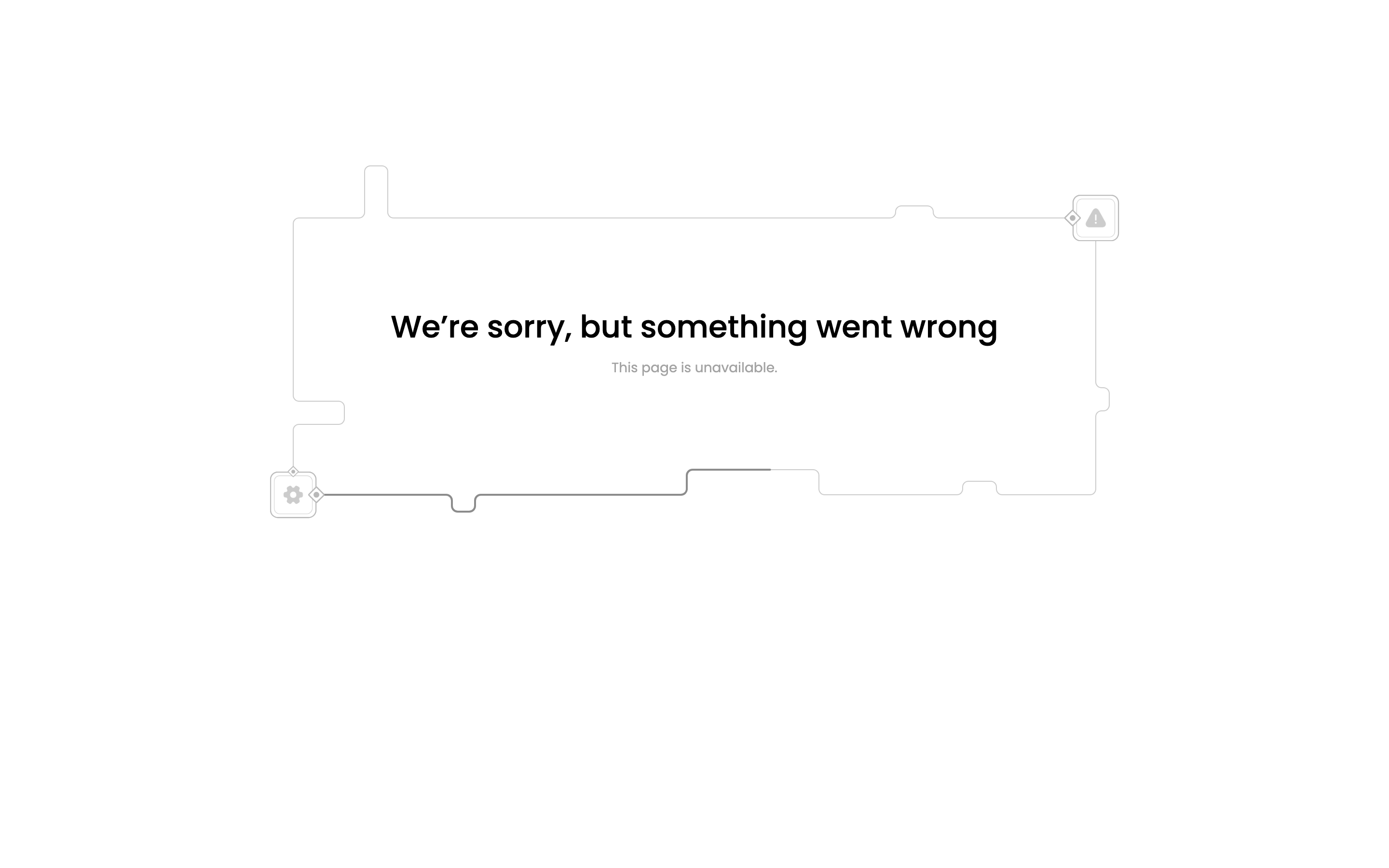
An unavailable product page
Updated 2 days ago