

Set up a product page
Turn on a product page and add images and options
Turn on the product page when you create a product, or later when you edit it. You can only do this for single payment and subscription products. See Overview.
To create and edit products, you need the permission to edit products. See Manage users.
Turn on a product page
-
Create the product. See Create your product catalogue. The last step of Add Product is Product page.
To add a page to an existing product, open it, click Edit, and scroll to Product page.
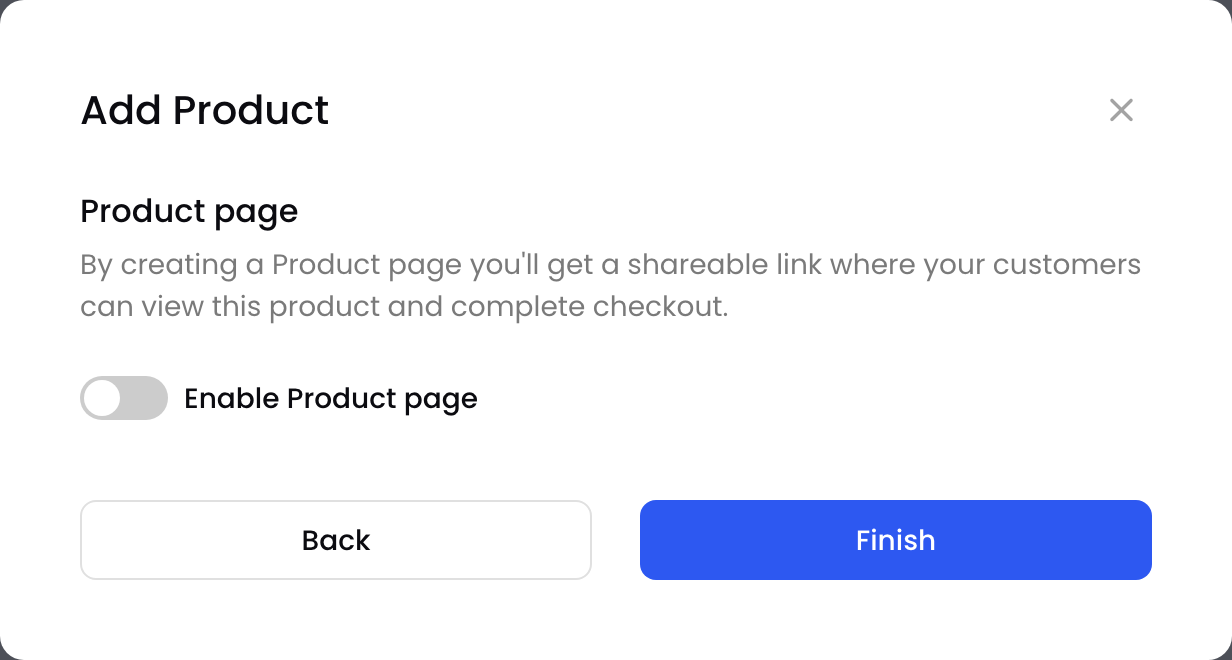
The Product page step
-
Turn on Enable Product page.
-
Add images, and for a single payment product, attributes. See the sections below.
-
Click Finish, or Save when you edit a product.
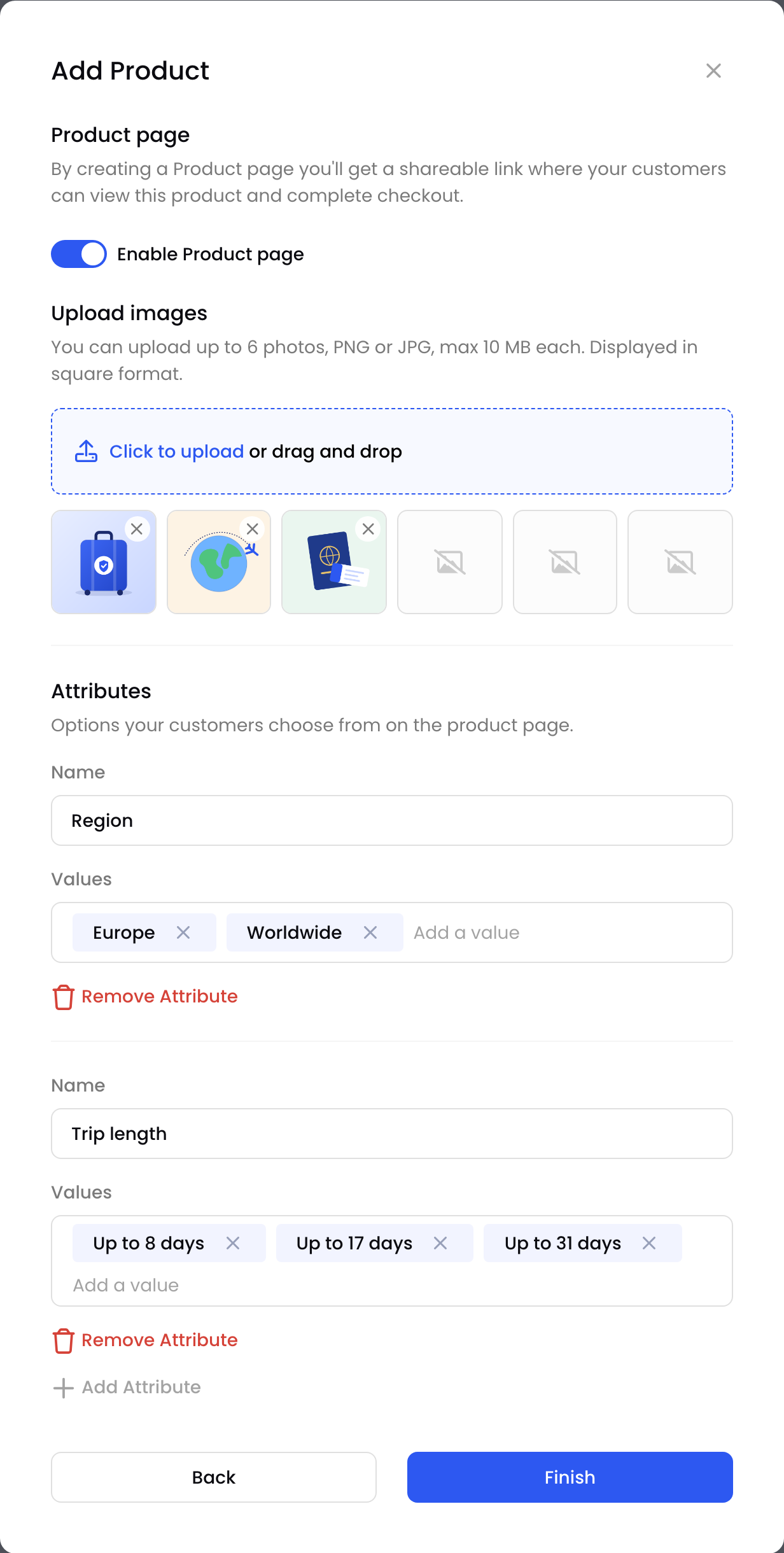
A product page with images and attributes
BillPro creates the page and its link. To get the link, see Share a product page.
Changing the purchase typeIf you change a product's purchase type, BillPro clears its product page settings, images and attributes.
Add images
Images appear in a gallery at the top of the page.
- Upload up to 6 images, in PNG or JPG format, up to 10 MB each.
- Click Click to upload, or drag the images onto the upload area.
- The page shows images in square format. Use square images, or keep the product in the centre.
- The first image is the main image. To change the order, drag the images.
- To remove an image, click the x on it.
Without images, the page shows your trading name instead of a gallery.
Add attributes
Attributes are the options customers choose from, such as a size, a colour, or a level of cover. Only single payment products have attributes.
- Under Attributes, click Add Attribute.
- Enter a Name, such as
Region. - Under Values, type each value and press Enter.
- To add another attribute, click Add Attribute again. To delete one, click Remove Attribute.
Customers see the attributes in the order you add them. Every option has the same price.
| Rule | Limit |
|---|---|
| Name and value length | Up to 60 characters |
| Characters | No commas or square brackets, and no spaces at the start or end |
| Names | Each attribute name must be different |
| Values | At least one value per attribute |
| Combinations | Up to 100. For example, 2 regions × 3 trip lengths is 6 combinations. |
Turn off a product page
- Open the product and click Edit.
- Under Product page, turn off Enable Product page.
- Click Save.
The link stops working. BillPro keeps the images and attributes, so you can turn the page on again later.
Setting the product to inactive also turns off its page.
Updated 2 days ago